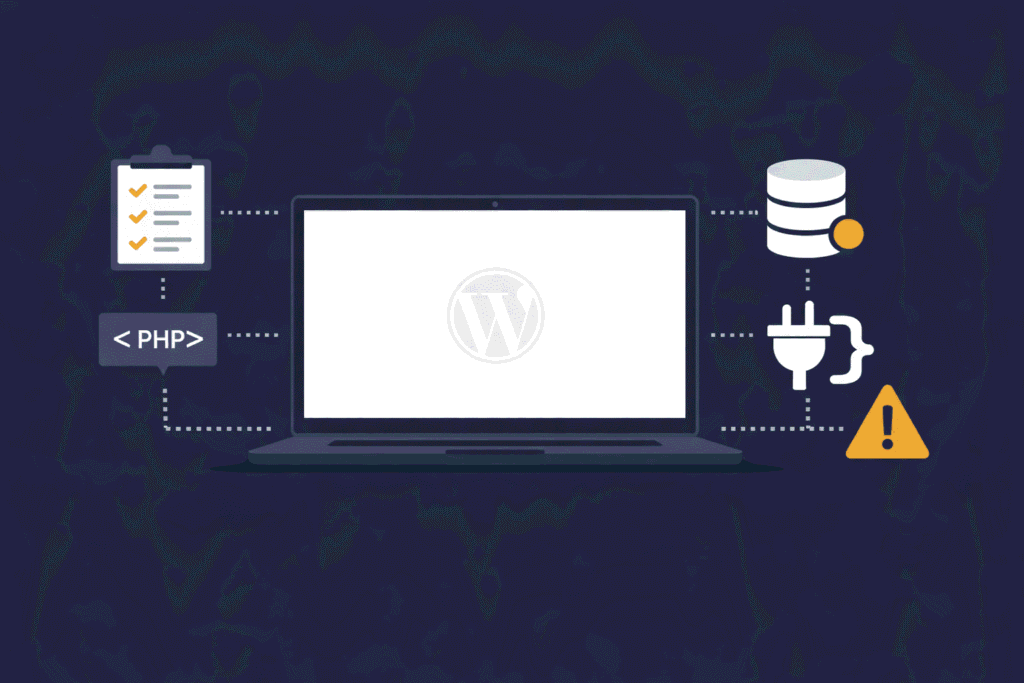
No error message. No clue. Just white. If you have built WordPress sites long enough, you know exactly how unsettling that blank screen feels — especially when it happens on a live client site.
The WordPress White Screen of Death, commonly called WSOD, is one of those problems that looks catastrophic and turns out to be completely fixable almost every single time. The challenge is not the fix itself. The challenge is knowing where to look first — because the same blank white screen can be caused by a dozen different things, and the fastest way to solve it is a systematic diagnosis rather than random guessing.
This is the checklist I work through every time it happens. Built from real projects, real client sites, and more late-night debugging sessions than I care to count.
Before anything else — stay calm and establish scope
The first thing to do is not touch anything. The second thing is to establish exactly what is broken.
Ask these questions immediately:
- Is the white screen on the front end, the admin dashboard, or both?
- Is it happening on every page or just specific ones?
- Did it happen after a specific action — plugin update, theme change, code edit, WordPress core update?
- Is the site on live, staging, or local environment?
The answers to these questions cut the diagnosis time in half. A white screen only on the front end points somewhere different than a white screen that locks you out of wp-admin entirely. A white screen that appeared immediately after a plugin update is a different conversation than one that appeared out of nowhere with no changes made.
Step 1 — Enable error reporting
A white screen with no error message is WordPress protecting itself from showing sensitive information publicly. The actual error exists — you just cannot see it yet.
Enable WP_DEBUG in wp-config.php:
define('WP_DEBUG', true);
define('WP_DEBUG_LOG', true);
define('WP_DEBUG_DISPLAY', true);
@ini_set('display_errors', 1);
Add these lines above the /* That's all, stop editing! */ line in wp-config.php. Reload the white screen. In most cases an error message will now appear telling you exactly what broke and on which line.
If you cannot access the site via FTP or file manager to edit wp-config.php, check the error log file directly at /wp-content/debug.log — it may already contain the error from before you enabled debug mode.
Important: Disable WP_DEBUG once the issue is resolved. Never leave it enabled on a live production site.
Step 2 — Check PHP memory limit
This is the single most common cause of WordPress white screens. PHP runs out of memory mid-execution and the page dies silently.
Increase the memory limit in wp-config.php:
define('WP_MEMORY_LIMIT', '256M');If that does not work, increase it further in php.ini:
memory_limit = 256MOr in .htaccess:
php_value memory_limit 256MIf the white screen disappears after increasing memory, the root cause is a plugin or theme consuming excessive memory. The memory increase is a temporary fix — the real fix is finding what is consuming the memory and why.
Step 3 — Deactivate all plugins
If enabling debug mode points to a plugin, or if the white screen appeared after a plugin update, this is your next step.
If you still have wp-admin access:
Go to Plugins → Installed Plugins → Select All → Bulk Action → Deactivate.
If wp-admin is also showing a white screen:
Rename the plugins folder via FTP or file manager. WordPress will automatically deactivate all plugins when it cannot find the folder.
/wp-content/plugins/
rename to
/wp-content/plugins-disabled/
Reload the site. If the white screen clears, a plugin is responsible. Rename the folder back to plugins, then reactivate them one by one — reloading after each activation — until the white screen returns. The last plugin you activated is your culprit.
Step 4 — Switch to a default theme
If deactivating plugins does not resolve it, the active theme is the next suspect.
Via FTP or file manager, rename your active theme folder inside /wp-content/themes/. WordPress will fall back to the next available theme — ideally a default WordPress theme like Twenty Twenty-Three should be present as a fallback.
/wp-content/themes/your-active-theme/
rename to
/wp-content/themes/your-active-theme-disabled/
If the white screen clears, the theme is causing the problem. Common theme-related causes include:
- A syntax error introduced in a recent theme file edit
- A theme function calling a plugin function that no longer exists
- A theme update that introduced a conflict with the current PHP version
- A missing or corrupted theme file
Step 5 — Check for PHP syntax errors
If you or someone else recently edited a PHP file directly — functions.php, a custom plugin file, a template file — a single missing semicolon, bracket, or quote will bring the entire site down with a white screen.
Enable WP_DEBUG as described in Step 1. The error message will point directly to the file and line number causing the problem.
Common syntax errors that cause WSOD:
// Missing semicolon
$variable = 'value'

// Mismatched quotes
$variable = "value';

// Missing closing bracket
function my_function() {
    // code here
// missing closing }

// Incorrect PHP opening tag
< ?php  // space after < breaks everything
If you cannot identify the error visually, copy the file content into an online PHP syntax checker — it will flag the exact line instantly.
Step 6 — Check PHP version compatibility
WordPress core, themes, and plugins all have PHP version requirements. If your hosting environment recently updated its PHP version — or if you migrated the site to a new server — a compatibility mismatch can cause a white screen with no obvious error.
Check your current PHP version in:
- cPanel → PHP Version Manager
- WordPress dashboard → Tools → Site Health → Server section
- Or add
<?php echo phpinfo(); ?>to a temporary file and load it in the browser
Common PHP compatibility issues:
- PHP 8.0 and above deprecated several functions used in older plugins and themes
- PHP 8.1 introduced stricter type handling that breaks poorly written code
- Some older WordPress plugins have not been updated for PHP 8.x at all
If a recent PHP version change coincides with the white screen, temporarily roll back the PHP version to confirm this is the cause, then update or replace the incompatible plugin or theme.
Step 7 — Check the WordPress core files
On rare occasions the WordPress core files themselves become corrupted — usually during a failed automatic update or a server interruption mid-update.
Download a fresh copy of WordPress from wordpress.org. Via FTP, replace the following folders entirely — do not merge, replace completely:
/wp-admin//wp-includes/
Do not touch /wp-content/ — that is where your themes, plugins, and uploads live.
Also replace all the PHP files in the root directory — wp-login.php, wp-settings.php, wp-load.php and others — but leave wp-config.php alone.
This replaces all core files with clean versions without touching any of your site data.
Step 8 — Check .htaccess file
A corrupted or incorrectly configured .htaccess file can cause white screens, particularly on Apache servers.
Rename the existing .htaccess file:
/.htaccess
rename to
/.htaccess-old
Then generate a fresh one by going to WordPress dashboard → Settings → Permalinks → Save Changes. WordPress will write a new clean .htaccess automatically.
If you have custom rewrite rules or server configurations in your .htaccess, copy them carefully from the old file into the new one — one block at a time — reloading after each addition to identify if any custom rule is causing the issue.
Step 9 — Check the database
White screens can also originate from database issues — corrupted tables, failed connections, or a misconfigured wp-config.php pointing to the wrong database credentials.
Check database connection credentials in wp-config.php:
define('DB_NAME', 'your_database_name');
define('DB_USER', 'your_database_user');
define('DB_PASSWORD', 'your_database_password');
define('DB_HOST', 'localhost');
If these are correct, repair the database tables via phpMyAdmin — select all tables, then choose Repair Table from the dropdown. Or add this temporarily to wp-config.php:
define('WP_ALLOW_REPAIR', true);Then visit: https://yoursite.com/wp-admin/maint/repair.php
Remove that line from wp-config.php immediately after running the repair.
Step 10 — Check server error logs
If none of the above steps have surfaced the cause, go directly to the server error logs. These live outside WordPress entirely and capture errors at the PHP and Apache/Nginx level that WordPress itself never gets to log.
Location varies by server and hosting provider but is commonly found at:
- cPanel → Error Logs
/var/log/apache2/error.logon Apache/var/log/nginx/error.logon Nginx- Your hosting control panel under Logs or Diagnostics
Server logs often surface fatal errors, timeout issues, and resource limit breaches that WordPress-level debugging misses entirely.
Scenario-specific quick reference
White screen only after plugin update:
Deactivate that specific plugin via FTP rename. Check plugin’s changelog and support forum for known conflicts.
White screen only on specific pages:
Check for a shortcode from a deactivated plugin still present in the page content. Check for a page template assigned that references a deleted template file.
White screen only in wp-admin:
Deactivate all plugins. If resolved, reactivate one by one. Also check if an admin-specific plugin such as a dashboard widget or admin menu plugin is the cause.
White screen after WordPress core update:
Deactivate all plugins — some plugins have not been updated for the latest WordPress version. Also check theme compatibility.
White screen on mobile only:
Usually a caching issue or a responsive CSS problem rather than a true WSOD. Clear all caches. Check for mobile-specific redirects in .htaccess.
White screen after migration:
Check wp-config.php database credentials. Check that the site URL in wp_options table matches the new domain. Check file permissions — folders should be 755, files should be 644.
White screen on localhost only:
Check that your local PHP version matches the server PHP version. Check that all required PHP extensions are enabled locally — particularly mysqli, curl, and mbstring.
File permission reference
Incorrect file permissions are an overlooked cause of white screens, particularly after migrations or server moves:
- WordPress root files: 644
- WordPress root directories: 755
- wp-config.php: 600 or 640
- .htaccess: 644
Never set files to 777. It is a security risk and some servers will outright refuse to execute files with world-writable permissions.
Prevention checklist going forward
The best WSOD is the one that never happens. These habits eliminate most of the common causes:
- Always test plugin and theme updates on staging before applying to production
- Keep a default WordPress theme installed as a fallback at all times
- Set up automatic daily backups with one-click restore capability
- Monitor PHP version compatibility before any server environment changes
- Use a staging environment for any direct file or code edits
- Enable uptime monitoring so you know about a white screen before the client does
Final thought
The WordPress White Screen of Death sounds terminal. It almost never is. In every case I have worked through, the site came back — sometimes in two minutes, sometimes after an hour of methodical diagnosis. The difference between a two-minute fix and an hour-long one is almost always whether you work through the problem systematically or start randomly disabling things and hoping.
Save this checklist. Share it with your team. And the next time a client sends that panicked message about their site being blank — you will know exactly where to start.
Have you encountered a WSOD cause that is not covered here? Drop it in the comments — I will add it to the checklist and credit you.
🔷 References & Further Reading
For deeper reading on the ideas covered in this article, these resources are worth your time:
- WordPress Official Docs — White Screen of Death
- WordPress Developer Docs — Debugging in WordPress
- WordPress Developer Docs — WP_DEBUG Constant
- PHP Official Docs — Error Handling
- WP Engine — WordPress Troubleshooting Guide
- Kinsta — How to Fix the WordPress White Screen of Death
- Smashing Magazine — WordPress Debugging Best Practices