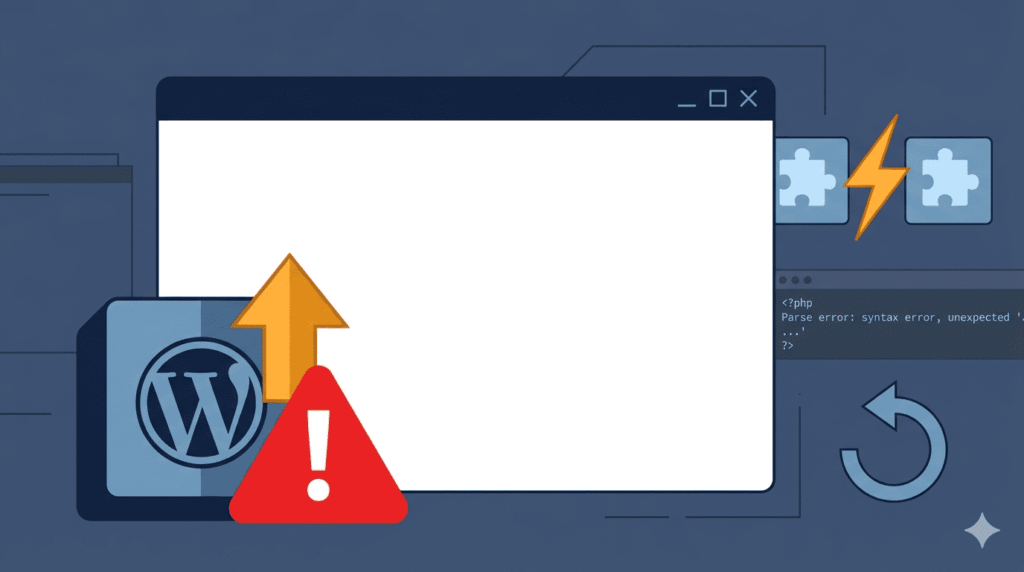
The update looked routine. One click, a progress bar, a confirmation message. Then nothing. Just white. Here is exactly how to find what broke and why — without losing your mind or your client’s trust.
Plugin updates are supposed to make things better. Security patches, new features, compatibility improvements — the changelog always sounds positive. But anyone who has maintained WordPress sites professionally knows the feeling of watching a routine update turn a live site into a blank screen with no warning and no explanation.
The frustrating part is not the blank screen itself. It is the silence. WordPress does not tell you which plugin caused it. It does not tell you what conflicted with what. It just stops rendering and leaves you to figure out the rest.
This article is about figuring out the rest — systematically, quickly, and in a way that helps you prevent it from happening again.
Why plugin updates cause blank screens
Before jumping into the diagnosis, it is worth understanding the mechanics. A plugin update does not just replace features — it replaces code. And that code interacts with WordPress core, with the active theme, and with every other active plugin on the site. When any of those interactions break, the result is often a fatal PHP error that kills the page render entirely.
The most common reasons a plugin update triggers a blank screen:
PHP version incompatibility
The updated plugin introduces code that requires a newer PHP version than the server is running — or deprecated functions that the current PHP version no longer supports. PHP 8.0, 8.1, and 8.2 each introduced breaking changes that caught many plugin developers off guard.
Conflict with another plugin
Two plugins define the same function, load the same library at incompatible versions, or hook into the same WordPress action in ways that cancel each other out. The updated plugin changed how it hooks into WordPress and now clashes with something that was working fine before.
Conflict with the active theme
The theme calls a function from the plugin that has been renamed, removed, or restructured in the new version. Theme developers often build functionality on top of plugins — particularly page builders, WooCommerce, and ACF — and plugin updates can break those dependencies silently.
Memory limit exceeded
The updated plugin consumes more memory than the previous version. The server hits its PHP memory limit mid-execution and the page dies without rendering.
Database schema change
Some plugin updates modify the database structure. If the update script fails or runs incompletely, the plugin tries to query columns or tables that do not yet exist — and fails fatally.
Missing dependency
The updated plugin now requires another plugin or a specific version of a library that is not present on the site.
Understanding which of these is the cause determines how you fix it. The diagnosis process below is designed to identify the category of problem quickly so the fix is clear.
Before you start — establish what you know
The moment you see the blank screen after a plugin update, gather this information before touching anything:
- Which plugin or plugins were updated — and from which version to which version?
- Is the blank screen on the front end, wp-admin, or both?
- Is it happening on every page or only specific ones?
- Did you update one plugin or multiple plugins at once?
- What PHP version is the server running?
- What version of WordPress core is active?
If you updated multiple plugins simultaneously, the diagnosis is slightly harder because you need to identify which one caused the problem. Going forward — and this is worth saying clearly — always update plugins one at a time on live sites, or test batch updates on staging first. But that is a prevention conversation. Right now there is a blank screen to fix.
Step 1 — Enable WP_DEBUG to surface the actual error
A blank screen is WordPress suppressing a fatal error from public view. The error exists — you just cannot see it. Enabling debug mode makes it visible.
Add these lines to wp-config.php via FTP or file manager, above the /* That's all, stop editing! */ line:
define('WP_DEBUG', true);
define('WP_DEBUG_LOG', true);
define('WP_DEBUG_DISPLAY', true);
@ini_set('display_errors', 1);
Reload the blank page. In most cases the actual PHP error will now appear on screen, and it will tell you exactly which plugin file caused it and on which line.
A typical error message looks like this:
Fatal error: Cannot redeclare plugin_function_name()
(previously declared in /wp-content/plugins/other-plugin/file.php:45)
in /wp-content/plugins/updated-plugin/file.php on line 78
That single error message tells you everything — which plugin updated and which existing plugin it is now conflicting with. The fix becomes straightforward from there.
If the error does not appear on screen, check the debug log file directly:
/wp-content/debug.log
This file captures all errors even when display is suppressed. Open it and look for the most recent fatal error entries — they will be timestamped and will point directly to the problem file.
Always disable WP_DEBUG after resolving the issue. Never leave it active on a production site.
Step 2 — Deactivate the updated plugin immediately
If the error message clearly identifies the updated plugin as the source, deactivate it immediately to restore the site. This is the priority — get the site back up first, diagnose further second.
If you still have wp-admin access:
Go to Plugins → find the recently updated plugin → Deactivate.
If wp-admin is also showing a blank screen:
Rename the specific plugin folder via FTP or file manager:
/wp-content/plugins/updated-plugin-name/
rename to
/wp-content/plugins/updated-plugin-name-disabled/
WordPress will automatically deactivate the plugin when it cannot find the folder. Reload the site — if the blank screen clears, you have confirmed the updated plugin as the cause.
If you updated multiple plugins at once and are not sure which one caused the problem, rename all updated plugin folders, confirm the site is restored, then re-enable them one at a time to identify the specific culprit.
Step 3 — Identify the type of conflict
Once the updated plugin is deactivated and the site is restored, the next step is identifying what type of conflict caused the problem. This determines the correct fix.
Check the error message carefully:
// Function conflict between two plugins
Fatal error: Cannot redeclare function_name()
// Fix: One plugin needs to wrap its function in function_exists() check
// PHP version incompatibility
Fatal error: Uncaught Error: Call to undefined function each()
// Fix: Update PHP version or find a compatible plugin version
// Class conflict
Fatal error: Cannot declare class ClassName because the name is already in use
// Fix: One plugin needs to namespace its classes properly
// Memory exhaustion
Fatal error: Allowed memory size of 134217728 bytes exhausted
// Fix: Increase PHP memory limit, investigate plugin memory usage
// Missing dependency or undefined function
Fatal error: Call to undefined function plugin_dependency_function()
// Fix: Install the required dependency plugin or update the dependent plugin
Each error type points to a different resolution path. Read the error message as information, not just as confirmation that something is broken.
Step 4 — Test in a staging environment
Before attempting any fix on the live site, replicate the problem in a staging environment if one is available. This gives you a safe space to test solutions without risking further disruption to the live site.
Reproduce the conflict on staging:
- Install the same version of the updated plugin
- Activate all the same plugins that are active on the live site
- Confirm the blank screen reproduces
Now test fixes in staging first:
- Try the plugin rollback
- Test with PHP version changes
- Test deactivating specific plugins to confirm which ones conflict
- Test the theme independently
Only apply the confirmed fix to the live site once it has been validated on staging. This is the professional approach and the one that protects client trust.
Step 5 — Roll back the plugin to the previous version
The fastest way to restore full functionality while a permanent fix is found is to roll back the updated plugin to the version that was working before the update.
Using WP Rollback plugin:
Install and activate WP Rollback from the WordPress plugin repository. Go to Plugins → find the problem plugin → click Rollback. Select the previous version and confirm. The plugin will install the older version and restore the previous working state.
Manually via FTP:
Download the previous version directly from the plugin’s WordPress.org page:
https://wordpress.org/plugins/plugin-name/advanced/
The Advanced tab shows all historical versions available for download. Download the previous version as a zip file, delete the current plugin folder via FTP, and upload and extract the older version in its place.
Important: After rolling back, disable automatic updates for that plugin temporarily to prevent WordPress from updating it again before the conflict is resolved:
// Add to functions.php to disable auto-update for a specific plugin
add_filter('auto_update_plugin', function($update, $item) {
    if ($item->slug === 'problem-plugin-slug') {
        return false;
    }
    return $update;
}, 10, 2);
Step 6 — Investigate the conflict in depth
Rolling back restores the site but does not resolve the underlying conflict. The plugin will release another update eventually and the problem may recur. Investigating the conflict properly now prevents that.
Check the plugin’s support forum:
Go to https://wordpress.org/support/plugin/plugin-name/ and search for recent threads mentioning blank screens, fatal errors, or conflicts with specific plugins. In most cases, if you hit a conflict after an update, other users have hit it too — and the thread may already contain a fix or a confirmation that the plugin developer is working on it.
Check the plugin’s changelog:
Review what changed in the update that caused the conflict. The changelog is usually accessible at https://wordpress.org/plugins/plugin-name/#developers. Look for mentions of refactored functions, removed hooks, renamed classes, or new dependencies.
Check PHP compatibility:
Use the PHP Compatibility Checker plugin to scan the updated plugin’s code against your server’s PHP version. It will flag functions that are deprecated or unsupported in your current PHP environment.
Check for hook and filter conflicts:
If two plugins are hooking into the same WordPress action or filter with conflicting logic, the error may not be a fatal PHP error but a silent functional conflict — one that causes unexpected behaviour rather than an outright blank screen. Use the Query Monitor plugin to inspect hooks and filters firing on affected pages.
Step 7 — Resolve the conflict permanently
Depending on the type of conflict identified, the permanent resolution will be one of the following:
If it is a PHP version incompatibility:
Update the server PHP version if the plugin requires a newer version and your server is behind. Or stay on the rolled-back plugin version until the developer releases a fix for older PHP versions.
If it is a conflict with another plugin:
Report the conflict to both plugin developers with the specific error message and the versions involved. In the meantime, evaluate whether one of the conflicting plugins can be replaced with an alternative that does not conflict.
If it is a theme compatibility issue:
Contact the theme developer with the specific error and plugin version. Check if a theme update is available that addresses the compatibility issue. As a temporary measure, add a function_exists() check in the theme code around the function call that is breaking:
// Instead of calling the plugin function directly
plugin_function_name();

// Wrap it in a check
if( function_exists('plugin_function_name') ) {
    plugin_function_name();
}
If it is a memory issue:
Increase the PHP memory limit and profile the plugin’s memory usage. A legitimate plugin should not require excessive memory — if the updated version is dramatically more memory-hungry than the previous one, report it to the developer as a regression.
If it is a missing dependency:
Install the required dependency plugin or library. Check the updated plugin’s documentation for any new requirements introduced in the version that caused the conflict.
Step 8 — Verify the fix completely
After applying the resolution, do not assume everything is working just because the blank screen is gone. Run a complete verification:
- Test the front end across multiple page types — homepage, posts, pages, shop, checkout
- Test wp-admin functionality — create a post, update a page, check all plugin settings
- Test the specific functionality the updated plugin provides — confirm it is working correctly with the fix in place
- Check the debug log for any new warnings or non-fatal errors introduced by the fix
- Run a performance check — confirm the fix has not introduced a memory or speed regression
- Test on mobile — some conflicts manifest differently on mobile rendering
Only after this verification is complete should WP_DEBUG be disabled and the fix considered resolved.
The plugin update process that prevents this
Every blank screen after a plugin update is, to some degree, a process failure — not just a technical one. These practices eliminate the vast majority of update-related conflicts before they reach a live site:
Maintain a staging environment
that mirrors the live site exactly — same PHP version, same plugins, same theme, same WordPress version. Every update goes to staging first.
Update plugins one at a time
rather than bulk updating. One change at a time means one variable to investigate when something breaks.
Take a full backup immediately before any update
files and database. A one-click restore is always faster than a manual diagnosis.
Read the changelog before updating
particularly for major version updates. If the changelog mentions refactored core functionality, renamed hooks, or new dependencies, test extra carefully.
Monitor PHP version compatibility
across your plugin stack. Before updating the server PHP version, run a compatibility scan across all active plugins and themes.
Set up uptime monitoring so you know within minutes if a site goes down after an update — before the client tells you.
Quick reference — conflict diagnosis by symptom
Blank screen immediately after one specific plugin update:
Deactivate that plugin. Enable WP_DEBUG. Read the error. Roll back if needed.
Blank screen after bulk update, unclear which plugin:
Deactivate all recently updated plugins. Reactivate one by one. Identify the culprit.
Blank screen only on specific page types:
The conflict is likely with a plugin or shortcode used on those specific pages. Check page templates and shortcodes on affected pages.
Blank screen only in wp-admin after update:
The conflict is likely with an admin-specific plugin feature. Check for dashboard widgets, admin menu modifications, or settings page conflicts from the updated plugin.
Blank screen after update on WooCommerce site:
WooCommerce conflicts are among the most complex. Check WooCommerce status page for known plugin incompatibilities. Check if the updated plugin has a declared WooCommerce compatibility version.
Blank screen after update resolved itself after clearing cache:
The conflict was with a cached version of the old plugin code. Implement a cache-clearing step as part of every update procedure going forward.
Final thought
A blank screen after a plugin update is one of the most common problems in WordPress development — and one of the most preventable. The diagnosis process is always the same: enable debug mode, read the error, identify the conflict type, restore the site, investigate the root cause, resolve permanently.
What separates an experienced WordPress developer from a frustrated one in this situation is not knowing more obscure fixes. It is having a systematic process that removes the guesswork and gets the site back up quickly — every time.
The update that broke the site is not the problem. The absence of a process to catch it before it reached production is.
References & Further Reading
For deeper reading on the ideas covered in this article, these resources are worth your time:
- WordPress Official Docs — Debugging in WordPress
- WordPress Plugin Developer Handbook — Best Practices
- WP Rollback Plugin — WordPress.org
- Query Monitor Plugin — WordPress.org
- Kinsta — How to Fix the WordPress White Screen of Death
- Smashing Magazine — WordPress Plugin Development Best Practices
- PHP Official Docs — Error Handling and Logging