The first ten minutes after a PHP fatal error hits a live WordPress site are the ones that matter most. Not because the problem cannot be solved later — it can — but because what you do in those first ten minutes determines how much damage gets done and how much trust gets lost.
A live site going down is not just a technical event. It is a client event. Every minute the site is down is a minute a customer cannot buy, a visitor cannot convert, a business cannot operate. The technical fix matters. The speed of the technical fix matters more.
After handling more PHP fatal errors on live WordPress sites than I care to count — across client sites, agency projects, and production environments of varying complexity — this is the exact process I follow. Not the ideal process. Not the textbook process. The actual one, in the actual order, with the actual commands.
Before the crisis — what needs to be in place
The ten-minute recovery process only works if certain things are already set up before anything breaks. If they are not in place, the first ten minutes become thirty, and thirty becomes an hour.
Uptime monitoring The worst version of a live site going down is finding out from the client. Uptime monitoring — UptimeRobot, Better Uptime, or similar — sends an alert the moment the site becomes unreachable. Every live site I maintain has this configured. It is free at the basic level and takes five minutes to set up.
Server or hosting access FTP credentials, SSH access, or hosting control panel login — whichever applies to the environment — must be immediately accessible. Not in a colleague’s inbox. Not requiring a password reset. Immediately accessible.
Recent database and file backup A known-good backup from within the last 24 hours means the absolute worst case is a restore to yesterday’s state. Without a recent backup, the worst case has no floor.
WP-CLI access if available On servers where WP-CLI is available, it cuts recovery time significantly. Knowing whether it is available and how to access it before a crisis saves valuable minutes during one.
With these in place, the ten-minute process becomes realistic. Without them, adjust expectations accordingly.
Minute 0 — The alert arrives
The uptime monitor fires. Or a message comes in. Or you check the site and it is down.
The first thing to do is not panic and not start randomly changing things.
The first thing to do is open the site in a browser and confirm exactly what is showing:
- A completely blank white screen — PHP fatal error killing the page render entirely
- A partial page with an error message visible — PHP error with debug mode active or error display enabled
- A WordPress error page — database connection failure or similar
- A browser-level error — 500 Internal Server Error, 503 Service Unavailable
This confirmation takes thirty seconds and tells you immediately which category of problem you are dealing with. A 500 server error points somewhere different than a blank white screen. Identifying the correct category at the start prevents wasted effort going in the wrong direction.
For this article the scenario is confirmed: PHP fatal error, site is rendering blank or a 500 error, WordPress is not loading.
Minute 1 — Check if wp-admin is accessible
Open https://yoursite.com/wp-admin directly.
Three possible outcomes:
wp-admin loads normally — the PHP fatal error is isolated to the front end. This significantly narrows the cause. It is almost certainly a theme function, a front-end specific plugin feature, or a template file causing the error. You have dashboard access and can work from there.
wp-admin also shows the error — the fatal error is breaking WordPress core execution entirely. You are working from FTP or SSH only. This is the more serious scenario and the one the rest of this process is built around.
wp-admin shows a different error — note it. It may point to a different root cause than the front end error.
Minute 2 — Enable WP_DEBUG to see the actual error
A PHP fatal error on a live site is hidden by default. WordPress suppresses error output to prevent sensitive server information being displayed to site visitors. The error is there — it is just invisible until you make it visible.
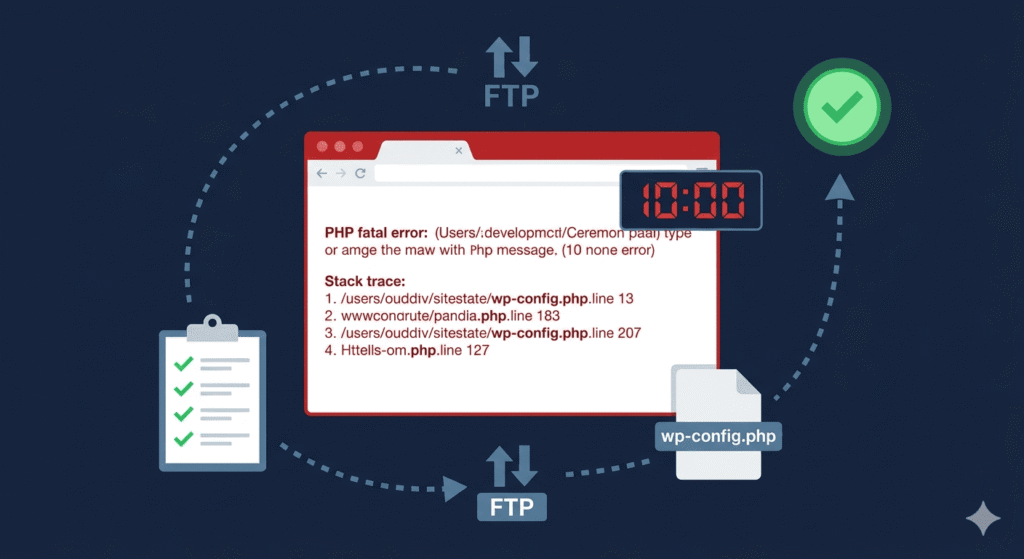
Connect to the server via FTP, SSH, or hosting file manager. Open wp-config.php and add these lines above the /* That's all, stop editing! */ line:
define('WP_DEBUG', true);
define('WP_DEBUG_LOG', true);
define('WP_DEBUG_DISPLAY', true);
@ini_set('display_errors', 1);
Save the file. Reload the site.
In most cases the actual PHP error now appears on screen. It looks something like this:
Fatal error: Uncaught Error: Call to undefined function get_field()
in /var/www/html/wp-content/themes/active-theme/functions.php:247
Stack trace:
#0 /var/www/html/wp-includes/class-wp-hook.php(310): theme_custom_function()
#1 {main}
thrown in /var/www/html/wp-content/themes/active-theme/functions.php on line 247
That single error message tells you:
- What broke —
Call to undefined function get_field() - Where it broke —
functions.phpon line 247 - What triggered it — a theme function calling an ACF function that is no longer available
If the error does not display on screen, check the debug log file immediately:
# Via SSH
tail -50 /var/www/html/wp-content/debug.log

# Or open via FTP at:
/wp-content/debug.log
The log is timestamped and will show the most recent fatal error at the bottom.
⚠️ Critical: Disable
WP_DEBUGandWP_DEBUG_DISPLAYas soon as the error is identified. Never leave error display active on a live production site — it exposes file paths and server information to anyone who visits.
Minute 3 — Read and classify the error
Do not skip past the error message to start fixing things. Read it properly. The error message contains everything needed to identify the correct fix.
The five most common PHP fatal error patterns on WordPress updates:
Pattern 1 — Call to undefined function
Fatal error: Call to undefined function plugin_function_name()
in /wp-content/themes/active-theme/functions.php on line 134
What it means: The theme or a plugin is calling a function from another plugin that is no longer active, has been renamed in an update, or has not loaded yet due to hook timing.
Immediate cause: Almost always a WordPress core update that changed hook loading order, or a plugin update that renamed or removed a function the theme depended on.
Pattern 2 — Cannot redeclare function
Fatal error: Cannot redeclare function_name()
(previously declared in /wp-content/plugins/plugin-a/file.php:45)
in /wp-content/plugins/plugin-b/file.php on line 78
What it means: Two plugins or a plugin and a theme are declaring the same function name. A WordPress core update changed the loading order and the conflict now surfaces where it did not before.
Pattern 3 — Class not found or cannot declare class
Fatal error: Class 'ClassName' not found
in /wp-content/plugins/plugin-name/file.php on line 23

Fatal error: Cannot declare class ClassName,
because the name is already in use
in /wp-content/plugins/plugin-name/file.php on line 23
What it means: A class dependency is missing or two plugins declare the same class name without namespacing. Common after WordPress core updates that change autoloading behaviour.
Pattern 4 — Deprecated or removed PHP function
Fatal error: Uncaught Error: Call to undefined function each()
in /wp-content/plugins/plugin-name/file.php on line 89

Fatal error: Uncaught TypeError: array_key_exists():
Argument #2 ($array) must be of type array, null given
What it means: The WordPress update changed the minimum PHP version or the server PHP version was updated alongside WordPress. The plugin or theme uses PHP functions that have been deprecated or removed.
Pattern 5 — Memory exhaustion
Fatal error: Allowed memory size of 268435456 bytes exhausted
(tried to allocate 20480 bytes)
in /wp-content/plugins/plugin-name/file.php on line 512
What it means: The WordPress update increased memory consumption above the current PHP memory limit. Common when WordPress core updates introduce new features that require additional memory at bootstrap.
Minute 4 — Apply the immediate fix
The immediate fix is not necessarily the permanent fix. The goal at this stage is restoring the live site as fast as possible. The permanent fix comes after.
If the error points to a plugin file
Deactivate the plugin immediately — via dashboard if accessible, or via FTP rename if not:
# Via SSH with WP-CLI
wp plugin deactivate plugin-name

# Via FTP — rename the plugin folder
/wp-content/plugins/problem-plugin/
→ rename to →
/wp-content/plugins/problem-plugin-disabled/
Reload the site. If it restores, the plugin is confirmed as the source. The site is back up. Now you have time to diagnose properly.
If the error points to the active theme’s functions.php
Access the file via FTP or SSH and comment out the specific line or function block causing the error:
// Temporarily disabled — PHP fatal error on line 247
// Caused by: Call to undefined function get_field()
// Date disabled: 2024-01-15
// TODO: Investigate ACF plugin status and restore

// if( function_exists('get_field') ) {
//     theme_custom_function();
// }
If you cannot safely comment out just the offending code, switch to a default WordPress theme temporarily:
# Via WP-CLI
wp theme activate twentytwentythree
Or via FTP — rename the active theme folder and WordPress falls back to the next available theme.
If the error is a memory exhaustion
Add to wp-config.php immediately:
define('WP_MEMORY_LIMIT', '512M');
Or via .htaccess on Apache:
php_value memory_limit 512M
Reload the site. If it restores, memory was the immediate cause. Investigate what the WordPress update changed that pushed memory consumption over the previous limit.
If the error is a PHP version incompatibility
Check the current PHP version:
php -v
If a PHP version update happened alongside the WordPress update, temporarily roll back the PHP version via the hosting control panel — cPanel, Plesk, or the host’s custom interface — to the version that was running before the update.
Minute 5 — Confirm the site is restored
Do not assume the fix worked because the immediate symptom cleared. Confirm fully before moving on.
□ Front end loads on homepage
□ Internal pages load — posts, pages, shop, key landing pages
□ wp-admin is accessible
□ No new error messages visible on any page
□ Check debug.log for new errors introduced by the fix
□ Quick check of core functionality — forms, checkout, login
This takes two minutes and prevents the scenario where the immediate fix resolves one error and exposes another that was hidden behind it.
Minute 7 — Communicate to the client
If the site belongs to a client, communicate before they ask. A message sent before the client noticed the outage and a message sent after the client reported it feel completely different on the receiving end — even if the content is identical.
Keep it brief, factual, and resolution-focused:
“Hi [name] — I wanted to let you know I identified and resolved a technical issue on your site that caused a brief outage earlier today. The site is fully back up and running. I’m investigating the root cause now and will follow up shortly with what happened and what I’ve done to prevent it recurring. No data was affected.”
Three things this message does: acknowledges the issue, confirms resolution, and signals that a proper follow-up is coming. It does not over-explain, does not assign blame, and does not use technical language the client does not need.
Minute 8 — Disable WP_DEBUG
With the site restored and the client updated, remove or disable the debug constants from wp-config.php:
// Change these back immediately
define('WP_DEBUG', false);
define('WP_DEBUG_DISPLAY', false);

// Keep WP_DEBUG_LOG true if you want errors logged silently going forward
define('WP_DEBUG_LOG', true);
Keeping WP_DEBUG_LOG active with WP_DEBUG_DISPLAY set to false means errors are captured in the log file without being displayed publicly — which is the correct configuration for a monitored live site.
Minute 9 — Document what happened
Before the details fade, write down the following:
Date and time of incident:
How it was detected (monitoring alert / client message / self-discovered):
What was the last change made before the error appeared:
Exact error message:
File and line number:
Immediate fix applied:
Time from detection to resolution:
This takes three minutes and serves three purposes: it feeds into the client follow-up, it becomes reference material if the same error pattern appears again, and it builds the institutional knowledge that makes the next incident faster to resolve.
Minute 10 — Plan the permanent fix
The immediate fix that restored the site is not necessarily the right long-term solution. A deactivated plugin cannot stay deactivated forever. A commented-out function block in functions.php needs to be properly resolved.
Based on the error classification from minute 3, the permanent fix path is one of the following:
Call to undefined function — theme calling a plugin function: Wrap all plugin function calls in function_exists() checks in the theme. This prevents the theme from breaking if the plugin is ever deactivated or updated:
// Permanent fix — defensive function call
if ( function_exists( 'get_field' ) ) {
    $value = get_field( 'field_name' );
}
Cannot redeclare — two plugins conflicting: Report to both plugin developers with the exact error message and versions. Evaluate whether one plugin can be replaced with an alternative that does not conflict.
PHP version incompatibility: Update the server PHP version to match the plugin’s requirements, or find an updated version of the plugin that supports the current PHP version. Use the PHP Compatibility Checker plugin to scan the full plugin stack before the PHP version update goes live.
Memory exhaustion: Identify which component of the WordPress update increased memory consumption. Profile plugin memory usage with Query Monitor. The memory limit increase is a bandage — the root cause is a plugin or theme consuming more memory than it should.
Class conflicts: Report to the plugin developer. The correct fix is proper PHP namespacing in the plugin code — something only the developer can implement correctly.
The follow-up client message
Within 24 hours of the incident, send a proper follow-up:
“Hi [name] — Following up on the technical issue from earlier today. Here is what happened and what I have done about it:
What happened: A WordPress core update changed how certain plugin functions are loaded, which caused a conflict with [plugin/theme name] that briefly took the site offline.
What I did: I identified the conflict, resolved it immediately, and the site has been fully operational since [time].
What I have done to prevent recurrence: [specific action — updated the plugin, added defensive code, set up staging update testing, etc.]
Total downtime: approximately [X] minutes. No data was lost or affected.
Let me know if you have any questions.”
This message closes the loop professionally, demonstrates competence, and builds trust rather than eroding it.
The process in summary
Minute 0  → Alert received — confirm what is showing on the site
Minute 1  → Check if wp-admin is accessible — establish scope
Minute 2  → Enable WP_DEBUG — surface the actual error message
Minute 3  → Read and classify the error — identify the correct fix path
Minute 4  → Apply immediate fix — restore the live site
Minute 5  → Confirm site is fully restored — verify across page types
Minute 7  → Communicate to client — before they ask
Minute 8  → Disable WP_DEBUG — remove error display from live site
Minute 9  → Document the incident — error, fix, timeline
Minute 10 → Plan the permanent fix — resolve the root cause properly
Final thought
A PHP fatal error on a live WordPress site is not a measure of competence. It is an occupational reality of maintaining software in a production environment where multiple systems — WordPress core, plugins, themes, PHP, the server — interact and change independently of each other.
What does measure competence is how fast it gets resolved, how well it gets communicated, and whether the same failure mode happens twice.
A clear process makes the first part faster. Good communication handles the second. And thorough documentation of what went wrong — combined with a permanent fix rather than a temporary patch — takes care of the third.
The ten minutes are the emergency. Everything after is the craft.
References & Further Reading
For deeper reading on the ideas covered in this article, these resources are worth your time:
- WordPress Developer Docs — Debugging in WordPress
- PHP Official Docs — Error Handling
- WP-CLI Official Docs — Plugin Commands
- PHP Compatibility Checker — WordPress.org
- Query Monitor Plugin — WordPress.org
- Kinsta — How to Fix the PHP Fatal Error in WordPress
- Smashing Magazine — WordPress Debugging Best Practices