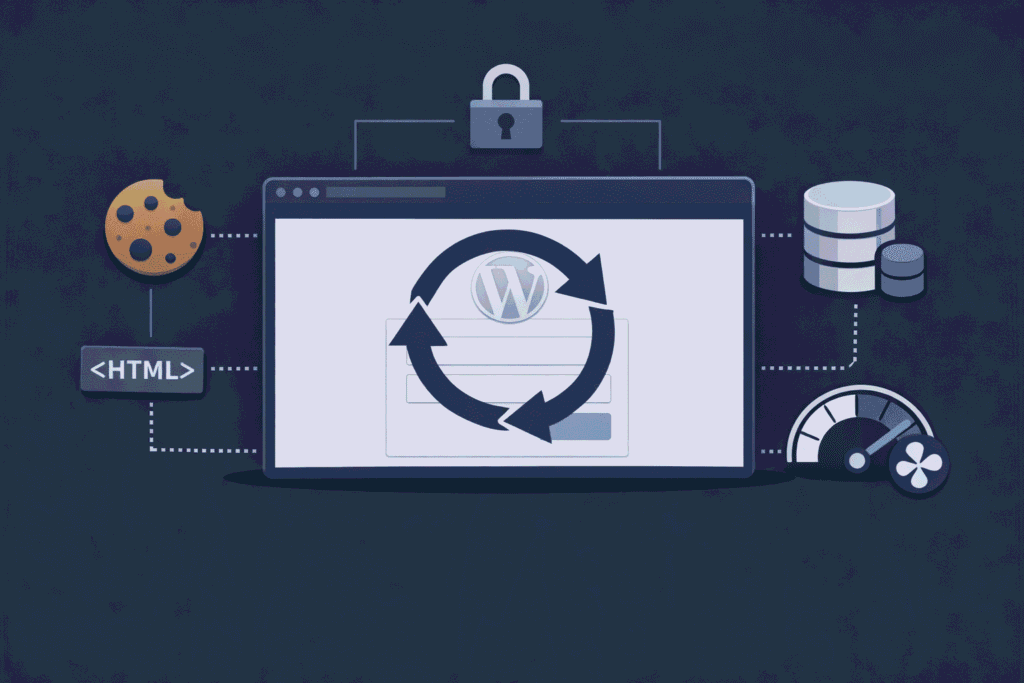
You enter your credentials. WordPress accepts them. Then it sends you straight back to the login page again. No error message. No dashboard. Just the login form, waiting for you to try again.
The WordPress login redirect loop is one of those problems that feels like it should not exist. The credentials are correct — WordPress is not rejecting them. Something in the authentication chain is breaking silently after the login is accepted, and the result is a loop that locks you out of your own site completely.
It is more common than it should be, it happens at the worst possible times, and it almost always has a clean fix once you understand what is actually causing it.
This article breaks down every cause I have encountered and every fix that has worked — in the order I actually work through them on a real site.
What is actually happening under the hood
Understanding the cause starts with understanding what WordPress does during a login.
When you submit your credentials, WordPress validates them and sets two authentication cookies in your browser — wordpress_logged_in and wordpress_sec. On the next request, WordPress reads those cookies to confirm you are authenticated and redirects you to the dashboard.
The redirect loop happens when one of two things goes wrong:
The cookies are not being set correctly — WordPress tries to set them but the browser does not store them, so every subsequent request looks like an unauthenticated one.
The cookies are being set but not being read correctly — something in the WordPress configuration or server setup is preventing WordPress from reading back the cookies it just wrote.
Either way, WordPress keeps seeing an unauthenticated request and keeps sending you back to the login page. The loop is not a bug in the login logic — it is a symptom of a broken cookie or session handling somewhere in the stack.
Step 1 — Clear browser cookies and cache immediately
Before touching any server or WordPress configuration, rule out the simplest cause first.
Clear all cookies and cached data for your site in your browser. Then try logging in again in a private or incognito window — this starts with a completely clean cookie state and rules out any browser-side interference immediately.
If logging in via incognito works fine, the problem is stale or corrupted cookies stored in your regular browser session. Clear them, close and reopen the browser, and log in normally.
If the redirect loop persists in incognito, the problem is on the server or WordPress configuration side — keep working through the checklist below.
Step 2 — Check and fix WordPress site URL settings
This is the most common cause of the login redirect loop and the first server-side thing to check.
WordPress stores two critical URL values in the database:
siteurl— the WordPress installation URLhome— the public-facing site URL
If these two values do not match, or if either of them has an incorrect value — a mismatched protocol, a trailing slash inconsistency, or a domain mismatch — WordPress cannot complete the cookie redirect correctly after login.
Check the current values in wp-config.php:
define('WP_HOME', 'https://yoursite.com');
define('WP_SITEURL', 'https://yoursite.com');
Adding these lines to wp-config.php overrides whatever is stored in the database and forces WordPress to use the correct URLs. Make sure both values match exactly — same protocol, same domain, no trailing slash.
Or check directly in the database via phpMyAdmin:
Go to the wp_options table and find the rows with option_name of siteurl and home. Make sure both values are correct and identical in format.
A common scenario that triggers this: a site migrated from HTTP to HTTPS where siteurl was updated but home was not, or vice versa. WordPress tries to redirect to one URL but the cookie is set for a different one, breaking the authentication chain.
Step 3 — Check the WordPress cookie path and domain constants
WordPress uses constants to determine what domain and path the authentication cookies are set for. If these are misconfigured — or if a plugin or theme has incorrectly defined them — the cookies get set for the wrong scope and WordPress cannot read them back.
Check wp-config.php for any of these constants being defined:
define('COOKIE_DOMAIN', 'yoursite.com');
define('COOKIEPATH', '/');
define('SITECOOKIEPATH', '/');
define('ADMIN_COOKIE_PATH', '/wp-admin');
If COOKIE_DOMAIN is set to the wrong value — for example, set to www.yoursite.com when you are accessing the site at yoursite.com without www — the cookie will not be readable and the loop will persist.
The safest fix in most cases is to either remove these constants entirely and let WordPress handle cookie configuration automatically, or set them explicitly to match the exact domain you are using:
define('COOKIE_DOMAIN', '');
Setting COOKIE_DOMAIN to an empty string tells WordPress to use the current domain automatically — which resolves most domain mismatch cookie issues without needing to hardcode a specific value.
Step 4 — Clear all WordPress caches
Caching is one of the most frequent causes of the login redirect loop, particularly on sites running caching plugins or server-level caching.
The problem occurs when a caching layer serves a cached version of the login page or the redirect response — overriding the dynamic WordPress authentication process and sending you back to the login page regardless of whether your cookies were set correctly.
Clear cache in common caching plugins:
- W3 Total Cache: Performance → Purge All Caches
- WP Super Cache: Settings → WP Super Cache → Delete Cache
- WP Rocket: WP Rocket menu → Clear Cache
- LiteSpeed Cache: LiteSpeed Cache → Manage → Purge All
Clear server-level cache:
If your hosting uses server-level caching — Varnish, Nginx FastCGI cache, LiteSpeed cache at the server level — clear it through your hosting control panel or contact your host directly.
If you cannot access the dashboard to clear cache:
Rename or delete the cache folder directly via FTP:
/wp-content/cache/
rename to
/wp-content/cache-disabled/
Also check if your caching plugin is correctly configured to exclude the login page and wp-admin from caching. The login page should never be cached — if it is, authentication will never work correctly.
Step 5 — Deactivate all plugins via FTP
If the above steps have not resolved the loop, a plugin is likely interfering with the authentication process. Security plugins, redirect plugins, membership plugins, and login customisation plugins are the most common culprits.
Rename the plugins folder via FTP:
/wp-content/plugins/
rename to
/wp-content/plugins-disabled/
Try logging in. If the redirect loop clears and you reach the dashboard, a plugin is responsible.
Rename the folder back to plugins and reactivate plugins one by one — returning to the login page and attempting to log in after each activation — until the loop returns. The last plugin activated is your culprit.
Plugins most commonly responsible for login redirect loops:
- Security plugins — iThemes Security, Wordfence, All In One WP Security
- Login redirect plugins — any plugin that customises post-login redirect behaviour
- Membership or access control plugins — MemberPress, Restrict Content Pro
- SSL or HTTPS redirect plugins — if they are creating conflicting redirect rules
- Caching plugins — if they have not been excluded from the authentication flow
Step 6 — Check .htaccess for conflicting redirect rules
A misconfigured .htaccess file — particularly one with custom redirect rules — can intercept the WordPress login redirect and send it somewhere unintended, creating a loop.
Check your .htaccess file for any redirect rules that reference the login page, wp-admin, or the root URL:
# Example of a conflicting rule that could cause issues
RewriteRule ^wp-admin/$ /login/ [R=301,L]
Also look for HTTP to HTTPS redirect rules that might conflict with WordPress’s own redirect handling:
RewriteCond %{HTTPS} off
RewriteRule ^(.*)$ https://%{HTTP_HOST}%{REQUEST_URI} [L,R=301]
If your WordPress siteurl uses HTTPS but the .htaccess redirect is constructed incorrectly, you can end up with a redirect chain that loops.
The quickest way to rule out .htaccess as the cause is to rename it temporarily:
/.htaccess
rename to
/.htaccess-backup
Then regenerate a clean one by going to Settings → Permalinks → Save Changes in wp-admin — if you can get in. If .htaccess was the cause, the login will work after renaming it.
Step 7 — Check for a wp-login.php redirect in wp-config.php or functions.php
Sometimes the redirect loop is introduced by a custom redirect added directly in code — either in wp-config.php or in the active theme’s functions.php.
Search both files for any of the following:
// Anything redirecting to the login page
wp_redirect(wp_login_url());
header('Location: ' . wp_login_url());

// Any auth_redirect hooks
add_action('init', 'custom_login_redirect');

// Any login_redirect filters
add_filter('login_redirect', 'custom_redirect_function');
A login_redirect filter that returns an incorrect URL or an empty string is a particularly common cause — WordPress falls back to the login page when it receives an invalid redirect target, creating the loop.
If you find a custom redirect function, temporarily comment it out and test the login again.
Step 8 — Check SSL and HTTPS configuration
If your site recently moved to HTTPS, or if there is a mismatch between how the server handles SSL and how WordPress is configured, the authentication cookies may be getting set with the Secure flag on an HTTP connection — which means the browser will refuse to send them back.
Check wp-config.php for this line:
define('FORCE_SSL_ADMIN', true);
This forces wp-admin to use HTTPS. If your server is not properly serving HTTPS, or if there is a proxy or load balancer between the browser and the server that strips SSL, this constant will cause authentication to fail silently.
If you are behind a load balancer or reverse proxy — common on managed hosting and cloud infrastructure — add this to wp-config.php to tell WordPress to trust the forwarded HTTPS headers:
if (isset($_SERVER['HTTP_X_FORWARDED_PROTO']) && $_SERVER['HTTP_X_FORWARDED_PROTO'] === 'https') {
    $_SERVER['HTTPS'] = 'on';
}
This is a particularly common cause on WP Engine, Cloudflare, AWS, and similar environments where HTTPS is terminated at the proxy level rather than at the WordPress server itself.
Step 9 — Check database wp_usermeta table
On rare occasions the redirect loop is caused by corrupted user session data or incorrect capability data stored in the wp_usermeta table.
Via phpMyAdmin, check the wp_usermeta table for your user ID. Look specifically for:
wp_capabilities— should contain your user role in serialised formatwp_user_level— should contain a numeric valuesession_tokens— stores active session data
If wp_capabilities is empty or contains a malformed serialised string, WordPress cannot confirm your user role after login and may redirect you back to the login page.
A clean fix for a single administrator account — use carefully:
UPDATE wp_usermeta
SET meta_value = 'a:1:{s:13:"administrator";b:1;}'
WHERE user_id = 1
AND meta_key = 'wp_capabilities';
Replace user_id = 1 with your actual user ID and wp_ with your actual table prefix if it has been changed.
Scenario-specific quick reference
Loop only happens for one specific user: Check that user’s role and capabilities in wp_usermeta. Check if a membership or access control plugin is restricting that user’s access to wp-admin.
Loop only happens on wp-admin, not the front end: Check FORCE_SSL_ADMIN setting. Check if an admin-specific redirect rule exists in .htaccess or a plugin.
Loop started after migrating to a new domain: Update siteurl and home in wp_options or wp-config.php to the new domain. Clear all cookies and caches after updating.
Loop started after installing an SSL certificate: Check that both siteurl and home use https://. Add the forwarded HTTPS header fix for proxy environments. Check COOKIE_DOMAIN constant.
Loop started after a plugin update: Deactivate that specific plugin via FTP rename of its individual folder inside /wp-content/plugins/. Check the plugin’s support forum for known issues with the latest version.
Loop on multisite installation: Check SUBDOMAIN_INSTALL constant in wp-config.php. Check that cookie domain is set correctly for the network domain. Multisite has additional cookie path considerations that single-site installs do not.
Loop only on mobile devices: Check for mobile-specific redirect rules in .htaccess. Check if a mobile redirect plugin is interfering with the authentication flow. Clear mobile browser cookies and cache.
Prevention going forward
Most login redirect loops are preventable. These habits eliminate the common triggers:
- Always update
siteurlandhomecorrectly when migrating a site to a new domain or protocol - Test login and logout behaviour on staging after installing any security, redirect, or membership plugin
- Configure caching plugins to exclude
/wp-login.phpand/wp-admin/from caching — every caching plugin has this option - If moving to HTTPS, update both URLs simultaneously and clear all cookies and caches immediately
- Keep a record of any custom redirect logic added to functions.php or wp-config.php so it can be identified quickly during diagnosis
Final thought
The WordPress login redirect loop is disorienting precisely because it gives you so little information. No error. No clue. Just the same login form, again and again. But every loop I have encountered has had a specific, identifiable cause — and working through the checklist above has resolved every single one.
The key is not to panic and not to start making random changes hoping something sticks. Each step in this checklist either confirms a cause or rules one out. By the time you reach the bottom, you will have found it.
Save this for the next time it happens. Because it will happen again — and next time you will be ready for it.
🔷 References & Further Reading
For deeper reading on the ideas covered in this article, these resources are worth your time:
- WordPress Official Docs — Login Trouble
- WordPress Developer Docs — Authentication Cookies
- WordPress Developer Docs — COOKIE_DOMAIN Constant
- Kinsta — How to Fix the WordPress Login Redirect Loop
- WP Engine — Fixing WordPress Redirect Issues
- Smashing Magazine — WordPress Security and Authentication
- PHP Official Docs — Session and Cookie Handling