
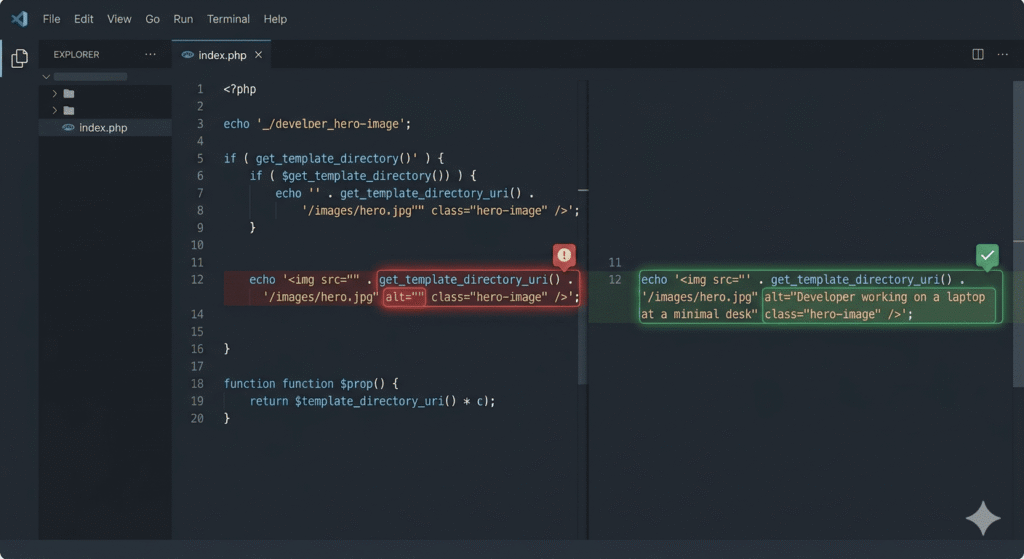
You’ve set the ALT text in ACF. You’ve published the page. You inspect the image in the browser — and the ALT attribute is either empty or completely missing. Here’s exactly why that happens and how to fix it properly.
If you have worked with Advanced Custom Fields long enough, you have hit this at least once. The client has filled in the image field. The media library has the ALT text set. Everything looks correct in the WordPress dashboard — yet the rendered image on the front end has no ALT text at all.
It is not a bug in ACF. It is not a WordPress core issue. It is almost always a matter of how the image field is being returned and how the template is pulling from it.
Let’s break it down properly.
Understanding how ACF returns image fields
Before writing any fix, you need to understand what ACF is actually giving you when you call an image field — because it depends entirely on what return format is set in the field settings.
ACF image fields have three return format options:
Image Array — returns a full array of image data including URL, ID, alt, title, caption, and sizes.
Image URL — returns only the URL as a plain string. Nothing else. No ALT text, no ID, nothing.
Image ID — returns only the attachment ID as an integer.
This is where most ALT text problems begin. Developers set the return format to Image URL because it feels simple and quick — just drop the URL into an img tag and move on. But when you do that, you lose access to everything else, including the ALT text.
The most common broken implementation
This is the pattern that causes the problem most often:
<?php $image = get_field('your_image_field'); ?>
<img src="<?php echo $image; ?>" alt="">
Or sometimes written as:
<?php $image = get_field('your_image_field'); ?>
<img src="<?php echo esc_url($image); ?>" alt="">
Both of these hardcode an empty ALT attribute. Even if the image has ALT text set in the media library, it never gets pulled through because the return format is URL-only and nobody is fetching the ALT text separately.
Fix 1 — Change the return format to Image Array
The cleanest solution in most cases is to change the ACF field return format to Image Array and update the template accordingly.
In your ACF field settings, set Return Format to Image Array, then update your template code to this:
<?php
$image = get_field('your_image_field');

if( $image ): ?>
    <img
        src="<?php echo esc_url($image['url']); ?>"
        alt="<?php echo esc_attr($image['alt']); ?>"
        width="<?php echo esc_attr($image['width']); ?>"
        height="<?php echo esc_attr($image['height']); ?>"
    >
<?php endif; ?>
This gives you full control. The $image['alt'] key pulls exactly what is set in the ACF field or the media library attachment, whichever is populated.
Fix 2 — Return format is Image ID
If your field is returning an Image ID — which is the recommended approach for performance since it gives you more control over image sizes — use wp_get_attachment_image or fetch the ALT text directly from post meta:
<?php
$image_id = get_field('your_image_field');

if( $image_id ):
    $image_url = wp_get_attachment_image_url($image_id, 'full');
    $image_alt = get_post_meta($image_id, '_wp_attachment_image_alt', true);
?>
    <img
        src="<?php echo esc_url($image_url); ?>"
        alt="<?php echo esc_attr($image_alt); ?>"
    >
<?php endif; ?>
Or even cleaner, let WordPress handle the whole thing:
<?php
$image_id = get_field('your_image_field');

if( $image_id ):
    echo wp_get_attachment_image($image_id, 'full');
endif; ?>
wp_get_attachment_image() automatically pulls the ALT text, width, height, and srcset from the media library. It is the most reliable method and the least code.
Fix 3 — Return format is URL but you cannot change it
Sometimes you are working inside a theme or plugin structure where changing the return format is not practical — maybe it would break other parts of the template. In that case, fetch the ALT text separately using the image URL to find the attachment ID first:
<?php
$image_url = get_field('your_image_field');

if( $image_url ):
    $image_id  = attachment_url_to_postid($image_url);
    $image_alt = get_post_meta($image_id, '_wp_attachment_image_alt', true);
?>
    <img
        src="<?php echo esc_url($image_url); ?>"
        alt="<?php echo esc_attr($image_alt); ?>"
    >
<?php endif; ?>
Note that attachment_url_to_postid() can be slow on large media libraries because it runs a database query. Use it as a fallback rather than a first choice.
Fix 4 — Fallback ALT text when the field is empty
A good production implementation always has a fallback. If the ACF ALT field is empty and the media library ALT is also empty, you do not want a blank ALT attribute on an important image. Here is a robust pattern using Image Array return format:
<?php
$image    = get_field('your_image_field');
$fallback = get_the_title(); // or any sensible fallback string

if( $image ):
    $alt = !empty($image['alt']) ? $image['alt'] : esc_attr($fallback);
?>
    <img
        src="<?php echo esc_url($image['url']); ?>"
        alt="<?php echo esc_attr($alt); ?>"
    >
<?php endif; ?>
This makes sure there is always something meaningful in the ALT attribute — which matters both for accessibility and SEO.
Fix 5 — ACF image inside a repeater field
If your image field sits inside an ACF repeater, the same principles apply but the structure looks like this:
<?php if( have_rows('your_repeater_field') ): ?>
    <?php while( have_rows('your_repeater_field') ): the_row(); ?>
        <?php
        $image = get_sub_field('your_image_field');
        if( $image ): ?>
            <img
                src="<?php echo esc_url($image['url']); ?>"
                alt="<?php echo esc_attr($image['alt']); ?>"
            >
        <?php endif; ?>
    <?php endwhile; ?>
<?php endif; ?>
Make sure the sub field return format is also set to Image Array — repeater sub fields have their own return format setting independent of standalone fields.
A note on where ALT text actually lives
There are two places ALT text can be set in WordPress and ACF:
The media library attachment — set once on the image itself, applies globally everywhere that image is used across the site.
The ACF field itself — if the field is set to Image Array, the alt key in the returned array pulls from the media library attachment by default. ACF does not have a separate ALT input — it reads from the attachment meta.
This means if the ALT text is set correctly in the media library but not showing on the front end, the problem is almost always in the template code — not in the data itself.
Quick diagnostic checklist
Before touching any code, run through this first:
- Is the ALT text actually set in the media library for this image?
- What is the return format set to in the ACF field settings — Array, URL, or ID?
- Is the template using
$image['alt']or leaving the ALT attribute hardcoded as empty? - Is this image inside a repeater — and if so, is
get_sub_field()being used instead ofget_field()? - Is the field name in
get_field()matching exactly what is set in ACF, including underscores and lowercase?
Most ALT text issues are resolved by the second or third item on that list.
The recommended approach going forward
For any new ACF image field implementation, this is the setup that avoids the problem entirely:
Set the return format to Image ID. Use wp_get_attachment_image() to render the image. Set ALT text in the media library at the point of upload. This way WordPress handles everything — responsive sizes, lazy loading, ALT text, width and height attributes — and your template stays clean.
<?php
$image_id = get_field('your_image_field');
if( $image_id ) echo wp_get_attachment_image($image_id, 'large');
?>
Three lines. No missing ALT text. No accessibility issues. No SEO problems.
Final thought
ACF is one of the most powerful tools in a WordPress developer’s toolkit. But like any tool, it does exactly what you configure it to do — nothing more. The missing ALT text issue is not a flaw in the plugin. It is a gap between what the field is returning and what the template is expecting.
Understanding the return format options and writing defensively around empty values will solve this issue permanently — and save you from getting a support message from a client wondering why their images have no ALT text six months after launch.
🔷 References & Further Reading
For deeper reading on the ideas covered in this article, these resources are worth your time: