You create the template.
You give it what looks like the correct filename.
You put it in the theme.
You refresh the page—and WordPress still displays something else.
This is one of those WordPress problems that can feel much more complicated than it actually is.
The problem is often not that WordPress is ignoring your template.
WordPress may simply be following a different template path than you expected.
Understanding the WordPress Template Hierarchy changes the way you troubleshoot these problems. Instead of randomly editing files, you can identify what kind of request WordPress is handling, map the hierarchy for that request, and determine which template should win.
That is the real skill behind template debugging.
The Core Principle: WordPress Chooses Templates by the Request
A WordPress template is not loaded simply because its filename exists.
When someone visits a URL, WordPress first determines what kind of request it represents. It then searches through the relevant template hierarchy until it finds an appropriate template.
The official WordPress documentation describes the process as WordPress using information from the query to determine the page type and then searching the hierarchy for a matching template. (WordPress Developer Resources)
Think about the process like this:
Visitor requests a URL
↓
WordPress identifies the query/page type
↓
WordPress checks the relevant template hierarchy
↓
Most specific available template is selected
↓
Fallback template is used if necessary
This explains why creating a file such as single-product.php does not automatically mean WordPress will use it.
First, WordPress has to determine that the current request belongs to the relevant single custom-post-type hierarchy.
What Is the WordPress Template Hierarchy?
The WordPress Template Hierarchy is the set of rules WordPress uses to determine which theme template should render a particular request.
One important detail is that there isn’t really one single hierarchy covering every page.
There are different hierarchies depending on what the visitor is viewing:
- Front page
- Blog posts index
- Single post
- Page
- Custom post type
- Category
- Tag
- Custom taxonomy
- Search results
- Author archive
- Date archive
- 404 page
- Other specialized requests
The hierarchy generally moves from more specific to more general.
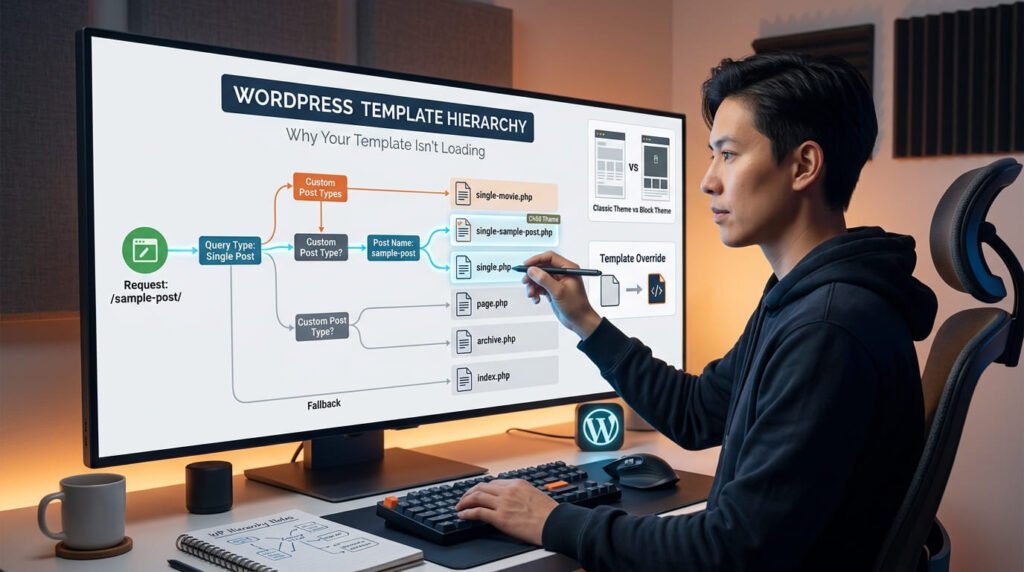
For example, in a classic theme, a single custom post type can follow a pattern such as:
single-{post_type}-{post_name}.php
        ↓
single-{post_type}.php
        ↓
single.php
        ↓
singular.php
        ↓
index.php
If the more specific file exists, WordPress can use it. If it doesn’t, WordPress continues down the hierarchy.
The same basic principle applies to block themes, although block themes use .html templates and have additional template sources and behavior. (WordPress Developer Resources)
The important lesson
Don’t ask only:
“Does my template file exist?”
Ask:
“Is this template part of the hierarchy for the request I’m actually viewing?”
That question will solve many template-loading problems before you touch your code.
Specific Templates Usually Beat Generic Templates
Imagine you have a custom post type called product.
A visitor opens:
/product/blue-shirt/For a classic theme, WordPress can look for:
single-product-blue-shirt.phpThen:
single-product.phpThen:
single.phpThen:
singular.phpThen:
index.phpSo if both of these exist:
single-product.php
single.php
WordPress doesn’t randomly choose between them.
The more specific template is higher in the hierarchy.
This is why the hierarchy is best understood as a decision path, not simply a collection of filenames.
The Template Hierarchy You Actually Need to Know
You don’t need to memorize every WordPress template filename to become good at debugging.
Instead, understand the major request types.
Single Posts and Custom Post Types
For a classic theme, a single custom post type can follow:
single-{post_type}-{post_name}.php
single-{post_type}.php
single.php
singular.php
index.php
For example, if the post type is portfolio and the post slug is website-redesign:
single-portfolio-website-redesign.php
single-portfolio.php
single.php
singular.php
index.php
WordPress searches that hierarchy in order. (WordPress Developer Resources)
Pages
A classic WordPress page can follow:
{custom-template}.php
page-{slug}.php
page-{id}.php
page.php
singular.php
index.php
So a page with the slug:
about-uscould use:
page-about-us.phpbefore falling back to page.php. (WordPress Developer Resources)
This is one reason a developer may edit page.php and see no change on a particular page: a more specific template may already be taking precedence.
Categories
A category archive can follow:
category-{slug}.php
category-{id}.php
category.php
archive.php
index.php
For example:
category-news.phpcan be more specific than:
category.phpwhich is more specific than:
archive.phpand finally:
index.php(WordPress Developer Resources)
Tags
A tag archive follows a similar pattern:
tag-{slug}.php
tag-{id}.php
tag.php
archive.php
index.php
So a tag called wordpress could potentially use:
tag-wordpress.phpbefore falling back to the more generic archive templates. (WordPress Developer Resources)
Custom Taxonomies
Custom taxonomies have their own hierarchy.
For example, a taxonomy called location with the term alabama can follow:
taxonomy-location-alabama.php
taxonomy-location.php
taxonomy.php
archive.php
index.php
This is important when working with custom WordPress applications because taxonomy archives are not necessarily the same thing as category archives. (WordPress Developer Resources)
Custom Post Type Archives
A custom post type can also have an archive.
For a post type called portfolio_project, the classic hierarchy includes:
archive-portfolio_project.php
archive.php
index.php
Notice the difference:
Single item:
single-portfolio_project.phpArchive:
archive-portfolio_project.phpThat small naming difference can create a surprisingly large amount of confusion.
(WordPress Developer Resources)
Why Your Template Isn’t Loading
Now we get to the real troubleshooting question.
If your template isn’t being used, there are several common explanations.
1. You’re Testing the Wrong Type of Request
This is probably the first thing to check.
You may think you’re looking at a single custom post type when you’re actually viewing its archive.
For example:
/products/might be an archive.
While:
/products/blue-shirt/might be an individual custom post type entry.
Those are different requests.
Therefore, they can use different template hierarchies.
Before debugging the file, identify the page.
Ask:
What exactly am I viewing?
- Single post?
- Page?
- Custom post?
- Category?
- Taxonomy?
- Archive?
- Search?
- 404?
Once you know that, the possible templates become much easier to determine.
2. Your Filename Doesn’t Match the Actual Post Type
This is extremely common with custom post types.
Suppose you think the registered post type is:
productand create:
single-product.phpBut the actual registered post type is:
productsThen your expected template won’t match the hierarchy you had in mind.
The URL may also mislead you.
A URL containing /products/ doesn’t automatically tell you the registered post type slug.
Don’t guess the post type.
Confirm it.
This is especially important when working with:
- Custom plugins
- WooCommerce
- Job listing systems
- Directory plugins
- Membership plugins
- Custom WordPress applications
3. You’re Using a Single Template for an Archive
This is another classic mistake.
You create:
single-product.phpand expect it to control:
/products/But /products/ may be the archive for the product post type.
The individual item might be:
/products/blue-shirt/So you’re dealing with two different requests.
Think of it as:
Archive
archive-product.php↓
Individual product
single-product.phpUnderstanding that distinction alone can eliminate a lot of WordPress debugging frustration.
4. A More Specific Template Is Winning
You create:
single-product.phpbut WordPress continues showing a different layout.
Before assuming your template isn’t working, check whether something more specific exists.
For example:
single-product-blue-shirt.phpmay take precedence for that specific product.
The hierarchy is designed to allow this level of specificity. (WordPress Developer Resources)
This is useful when you want one particular piece of content to have a special layout.
But it can become confusing when you forget that the specialized template exists.
5. You’re Working With a Child Theme
Your template may be correct but placed in the wrong theme.
Suppose the parent theme contains:
parent-theme/
    single.php
and your active child theme contains:
child-theme/
    single.php
The child theme can override the parent theme’s template.
This is one of the reasons WordPress developers should always verify which theme is active and where the template actually lives.
Don’t assume that modifying a template somewhere in the parent theme means it will be the template ultimately used.
6. You’re Working With a Block Theme
This is increasingly important.
If you’re working with a modern block theme, you may be looking for:
single.php
page.php
archive.php
because that’s what older WordPress tutorials taught you.
But block themes use HTML templates, commonly inside:
/templates/For example:
templates/
    single.html
    page.html
    archive.html
    index.html
The official WordPress documentation identifies index.html as the required template for a block theme and explains that block templates are stored under the theme’s /templates directory. (WordPress Developer Resources)
So before debugging a missing PHP template, ask:
Am I working with a classic theme or a block theme?
That one question can save considerable time.
Classic Themes and Block Themes Are Different in Implementation
The underlying concept of template hierarchy remains important, but the implementation differs.
Classic themes
Typically use PHP template files:
single.php
page.php
archive.php
category.php
index.php
Block themes
Use HTML block templates:
templates/single.html
templates/page.html
templates/archive.html
templates/index.html
Block themes can also have templates created or customized through the Site Editor. WordPress documents a priority involving user-created templates, child-theme templates, and theme templates when resolving block templates. (WordPress Developer Resources)
That means a developer debugging a block theme needs to consider more than simply:
“Which file is in my theme folder?”
The template may also have been customized through the site’s editing system.
A Practical WordPress Template Debugging Workflow
Instead of changing files randomly, use a repeatable process.
Step 1: Identify the URL
Start with the actual URL you’re testing.
For example:
/product/blue-shirt/or:
/products/or:
/category/wordpress/The URL gives you the first clue about the type of request.
Step 2: Identify the Query Type
Ask:
What kind of page is this?
Is it:
- A single post?
- A page?
- A custom post?
- A category archive?
- A taxonomy archive?
- A post type archive?
- Search results?
- A 404?
WordPress’s template loader uses the requested page/query information to determine which hierarchy applies. (WordPress Developer Resources)
Step 3: Identify the Actual Post Type
If it’s a custom post type, confirm its registered name.
Don’t infer it from the URL.
For example, determine whether the post type is actually:
productor:
productsor something completely different.
Step 4: Write Down the Hierarchy
Now create a simple map.
For example:
single-product-blue-shirt.php
        ↓
single-product.php
        ↓
single.php
        ↓
singular.php
        ↓
index.php
Then ask:
Which of these files actually exists?
This turns a confusing problem into a simple process of elimination.
Step 5: Check the Active Theme
Determine whether you’re using:
Classic theme
or
Block theme
Then check the appropriate template location and format.
Step 6: Check Child Theme Overrides
If you’re using a child theme, check both:
child themeand:
parent themeDon’t assume the file you found is the one WordPress will ultimately use.
Step 7: Check Site Editor Templates
For block themes, check whether the template has been customized in the Site Editor.
WordPress can use user-created block templates stored in the database, which means the visible template may not simply correspond to the file you are editing. (WordPress Developer Resources)
Step 8: Check Plugins and Template Builders
If you’re using a plugin or page builder that controls templates, check its conditions and overrides.
This is particularly relevant with systems that provide their own:
- Theme builders
- Dynamic templates
- Custom layouts
- Conditional display rules
If the WordPress hierarchy looks correct but the visitor still sees something unexpected, the next question is:
Is another system controlling the output?
Why Page Builders Can Make This More Confusing
Modern WordPress sites often contain another layer between the theme and the final visual output.
For example, a site may use a page builder’s theme/template system to create layouts for:
- Single posts
- Pages
- Archives
- Custom post types
So a developer may inspect:
single.phpand wonder why changing it has no visible effect.
The answer may not be a broken WordPress hierarchy.
The actual page could be controlled by a higher-level template system.
The debugging principle is therefore:
WordPress hierarchy first.
Theme architecture second.
Builder/plugin overrides third.
Don’t immediately assume WordPress itself is failing.
Don’t Change Multiple Files at Once
This sounds obvious, but it is one of the most useful debugging habits.
Suppose your page isn’t loading single-product.php.
You change:
single-product.php
single.php
archive.php
functions.php
header.php
Then refresh.
Something changes.
Now you don’t know what actually fixed the problem.
Instead:
Change one thing.
Test.
Observe.
Continue.
This makes WordPress debugging much more predictable.
Template Hierarchy Is Also an Architecture Skill
Template hierarchy isn’t just something you memorize for WordPress interviews.
It influences how you structure real projects.
A developer who understands the hierarchy can create more predictable theme architectures and avoid unnecessary duplication.
Instead of creating separate templates everywhere, you can use the hierarchy appropriately:
Specific template when necessary
↓
General template when appropriate
↓
Fallback template when nothing more specific exists
This creates a cleaner relationship between content types and presentation.
WordPress itself describes the index template as the catch-all fallback when a more specific template isn’t available. (WordPress Developer Resources)
What About SEO and AI Search?
Template hierarchy isn’t an SEO ranking technique.
Creating single-product.php instead of single.php does not automatically improve rankings.
But template architecture can influence what your website consistently outputs.
A well-designed template system can help maintain consistent:
- Page titles
- Heading structures
- Main content
- Internal links
- Breadcrumbs
- Structured data
- Canonical information
- Content relationships
That matters because search engines and AI systems need to process the actual rendered content.
The important distinction is:
Template hierarchy doesn’t directly create better SEO or GEO.
But a reliable template architecture can make it easier to produce consistent, structured and understandable pages at scale.
For a WordPress site with hundreds or thousands of pages, that consistency becomes much more important than manually fixing individual pages.
The Fastest Way to Think About a Broken Template
When a template isn’t loading, don’t start with:
“What’s wrong with my PHP?”
Start with:
1. What page am I viewing?
↓
2. What query type is it?
↓
3. What is the actual post type/taxonomy?
↓
4. What is the hierarchy for that request?
↓
5. Which matching templates exist?
↓
6. Is this a classic or block theme?
↓
7. Is a child theme, Site Editor, plugin, or builder involved?
That sequence is far more reliable than guessing.
Final Takeaway
The WordPress Template Hierarchy becomes much easier once you stop thinking of it as a long list of filenames.
Think of it as a decision system.
WordPress receives a request.
It identifies what the visitor is asking for.
It follows the appropriate hierarchy.
It looks for the most specific available template.
And if it cannot find one, it moves toward a more general fallback.
So when your template isn’t loading, don’t immediately rewrite the template.
Identify the request first.
Then:
Identify → Map → Check → Verify → Debug
Once you understand that process, template problems stop feeling like WordPress is randomly ignoring your code.
WordPress is usually following a rule.
Your job as the developer is to discover which rule applies.