Hook:
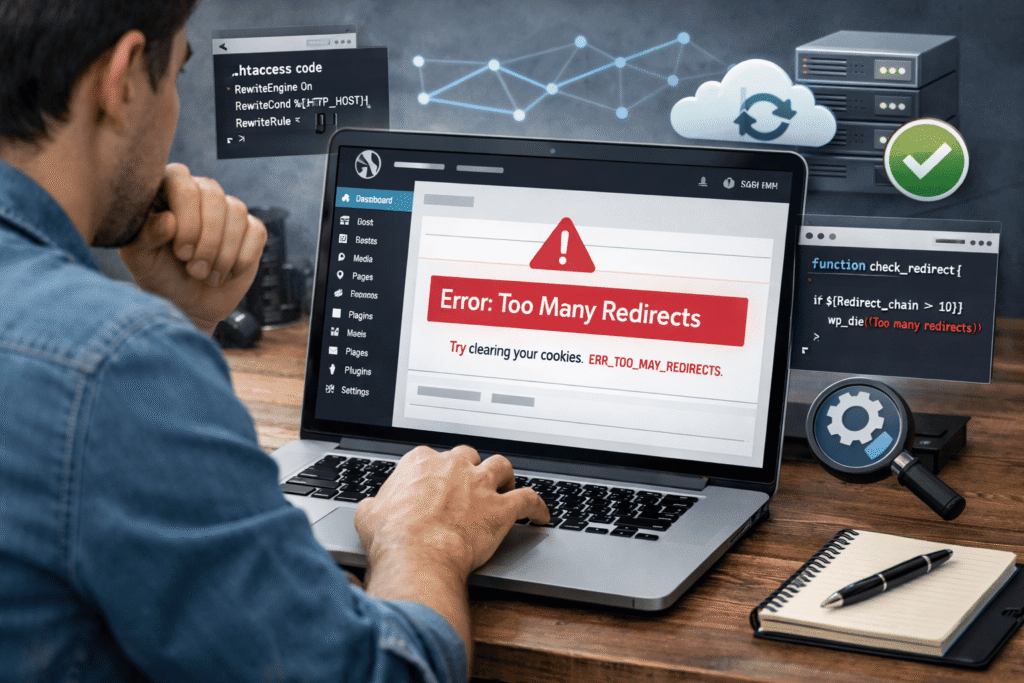
“Imagine this: a client calls you at midnight in a panic, telling you their WordPress site is showing a Too Many Redirects error. No one can access the site, and the business is losing customers. What would you do? In this article, I’ll walk you through how I fixed this issue step-by-step, using both troubleshooting skills and advanced technical methods to resolve the error.”
The Problem:
The Too Many Redirects error in WordPress happens when the server keeps trying to load the page but gets stuck in a loop. The browser ends up redirecting the request over and over, which leads to an error message such as: “This page isn’t working, [website name] is redirecting you too many times.” This issue typically arises from incorrect site settings, plugin conflicts, or even caching problems. But solving this issue requires more than just basic fixes; it needs a structured and technical approach.
What Failed:
In the case I’m about to explain, I wasn’t able to access the site’s backend dashboard, nor was the frontend accessible. Both visitors and the admin were stuck in the redirect loop, unable to access any page.
I initially checked for some basic solutions like clearing the browser cache and checking the site’s URL settings. However, it quickly became clear that the issue was deeper. The .htaccess file seemed to be generating too many redirect rules, conflicting with plugin settings, and the WordPress URL settings were misaligned.
That’s when I knew I needed to get into more advanced troubleshooting to fix the redirect issue once and for all.
Step-by-Step Debug Process:
Step 01: Clear Browser Cache and Cookies (First Step for Any Debugging):
A common beginner mistake is thinking the issue is server-side when it’s simply a browser cache or cookies issue. I always advise clients to start with this simple step. It might save time if the problem is local.
Step 02: Check WordPress and Site URL Settings:
- Why It’s Crucial: WordPress uses two key settings for defining the URLs: WordPress Address (URL) and Site Address (URL). If these are incorrectly set or mismatched, the site may constantly try to redirect users, causing a Too Many Redirects error.
- I went into the wp-config.php file and forced the settings for both URLs. This was helpful because the admin dashboard was inaccessible.
define('WP_HOME', 'https://example.com');
define('WP_SITEURL', 'https://example.com');
Advanced Tip: If you face issues with wp-config.php due to server restrictions, you can also modify wp-options directly through PHPMyAdmin to ensure the URLs are correct.
Step 03: Check for Plugin Conflicts (The Real Culprit in Most Cases):
- How I Debugged: Plugin conflicts often cause Too Many Redirects because plugins like Yoast SEO, Redirection, or WP Rocket could change URL structures without you knowing.
- Using FTP or File Manager, I renamed the plugins folder (
wp-content/plugins/), which deactivated all plugins. - Then, I checked if the issue persisted. If the error goes away, it’s a plugin causing the conflict.
- Advanced Debugging: By enabling and disabling plugins one at a time, I pinpointed the exact plugin responsible for the redirect loop.
- Common problematic plugins include Yoast SEO with its
sitewideredirect settings, or a caching plugin like WP Super Cache that fails to clear its old redirection rules when settings are updated.
Step04: Check and Correct the .htaccess File:
The .htaccess file can easily cause redirect loops if there are conflicting rules.
- Why .htaccess Matters: This file governs how your server handles requests. A single wrong rule, like an incorrect 301 redirect or a wildcard that tries to match too many URLs, can cause redirection loops.
- I renamed the .htaccess file and created a new one. Here’s the default WordPress .htaccess file content that I restored:
# BEGIN WordPress
RewriteEngine On
RewriteBase /
RewriteRule ^index\.php$ - [L]
RewriteCond %{REQUEST_FILENAME} !-f
RewriteCond %{REQUEST_FILENAME} !-d
RewriteRule . /index.php [L]
# END WordPress
Advanced Fix: After the reset, I re-saved the permalinks from the WordPress settings dashboard, which re-generated the .htaccess file. This ensures that the proper rewrite rules are in place.
Step 05: Check SSL/HTTPS Configuration:
- SSL Misconfiguration: Redirect loops happen when HTTP and HTTPS versions of the site aren’t properly configured. With the growing adoption of SSL, mixed content can also cause problems.
- After installing the SSL certificate, I ensured the WordPress settings for WordPress Address (URL) and Site Address (URL) were set to HTTPS.
- I also checked for HTTP to HTTPS redirection rules in the .htaccess file:
RewriteCond %{HTTPS} off
RewriteRule ^ https://%{HTTP_HOST}%{REQUEST_URI} [L,R=301]
Advanced Tip: Ensure SSL Certificate and HTTPS Redirection are consistently applied across both site URL settings and the server level.
Step 06: Test Using Redirect Tools for Deeper Analysis:
- Advanced Debugging Tools: Tools like Redirect Path or WhereGoes allowed me to trace the entire redirection path. This was key in identifying if there were multiple layers of redirects, like conflicting rules from plugins and server settings.
Step 07: Review Server and Hosting Configuration:
Hosting can be a source of redirection issues, especially when dealing with complex caching systems or proxy servers.
- I contacted the hosting provider to ensure that there were no cached redirects at the server level or issues with Nginx (if applicable).
Step 08: Verify DNS Configuration (For Migrated Sites):
- Domain Name System (DNS) misconfigurations after migration can also cause redirects. I verified that the DNS settings pointed to the correct IP address and that there was no conflict between old and new URLs. I used tools like MXToolbox to check DNS propagation.
The Final Fix:
By following the above steps, the issue was fixed. The core problem turned out to be a combination of incorrect URL settings in the wp-config.php file and a plugin conflict caused by outdated redirection rules from a caching plugin.
Lesson Learned:
What I learned from this issue is the importance of systematic troubleshooting and understanding the full scope of what could cause such errors. A deep dive into server-side configurations, plugin interactions, and SSL setups helped me resolve the issue quickly and efficiently.
Additionally, I learned that using advanced debugging tools and checking for server-level caching can save you a lot of time when WordPress doesn’t give you a clear error message. Always back up your site and test after each change to avoid downtime.
Why Hire Me?
I don’t just provide quick fixes—I bring deep technical expertise to resolve WordPress issues that go beyond basic fixes. From URL misconfigurations to complex plugin conflicts, I’ve seen it all and know exactly how to solve it. If you’re struggling with WordPress errors that are blocking your site’s performance or frustrating your users, I can provide solutions that will get your site back to running smoothly, securely, and efficiently.
Contact MeReferences & Further Reading
For readers who want a deeper technical understanding of WordPress troubleshooting and redirect issues:
- Rank Math: How to Fix Redirect Loops in WordPress – A comprehensive guide to resolving issues with redirects in Rank Math SEO plugin:
https://rankmath.com/blog/fix-redirect-loop/ - WordPress Developer Resources – Official documentation on WordPress URL handling, redirects, and debugging:
https://developer.wordpress.org/ - Yoast SEO: How to Fix Redirect Loops – Detailed guide on resolving SEO-related redirects and misconfigurations:
https://yoast.com/redirect-loops/ - WPBeginner: How to Fix WordPress 500 Internal Server Error – A general troubleshooting guide, including handling server-related redirect issues:
https://www.wpbeginner.com/wp-tutorials/how-to-fix-the-wordpress-500-internal-server-error/ - WordPress Codex: Debugging in WordPress – Comprehensive guide for debugging various WordPress errors, including redirects:
https://codex.wordpress.org/Debugging_in_WordPress - WP Rocket: How to Fix WordPress Caching Issues – Learn about caching issues and how they can trigger redirect loops:
https://wp-rocket.me/blog/wordpress-cache-issues/ - SSL Labs: SSL Configuration Checks – Verify and troubleshoot SSL configurations, which can be a source of redirect issues:
https://www.ssllabs.com/ssltest/