Introduction
Many WordPress websites face SEO issues not because of poor content—but due to technical misconfigurations that search engines struggle to interpret. One of the most common and often misunderstood issues is the canonical URL error.
You may have high-quality pages, proper keywords, and a well-designed layout, yet still see indexing issues, duplicate content warnings, or ranking drops. In many cases, the root cause lies in how canonical URLs are defined—or not defined—across your website.
This guide explains what canonical URLs are, why they matter, and provides a complete, practical approach to identifying and fixing canonical URL errors in WordPress—including how to configure them at both global and individual page levels.
What is a Canonical URL?
A canonical URL is the preferred version of a webpage that you want search engines to index when multiple URLs contain similar or identical content.
It is defined using a special HTML tag placed inside the <head> section:
<link rel="canonical" href="https://example.com/preferred-page/" />
This tag tells search engines:
“Among all similar versions of this page, this is the one that should be treated as the main version.”
Why Canonical URLs Are Important
Prevent Duplicate Content Issues
Search engines may find multiple URLs with the same content, such as:
Without a canonical tag, search engines treat these as separate pages, leading to duplication.
Consolidate SEO Value
Backlinks, authority, and ranking signals may get split across multiple URL versions. Canonical URLs ensure all value is consolidated into one primary URL.
Improve Crawling and Indexing Efficiency
Search engines have limited crawl budgets. Canonical tags help them:
- Avoid unnecessary duplicate pages
- Focus on the most important content
Key Problem / Context
In WordPress, canonical URL errors typically arise due to:
- Theme or plugin conflicts
- Incorrect SEO plugin configuration
- URL parameter variations
- HTTP vs HTTPS inconsistencies
- www vs non-www duplication
These issues can result in:
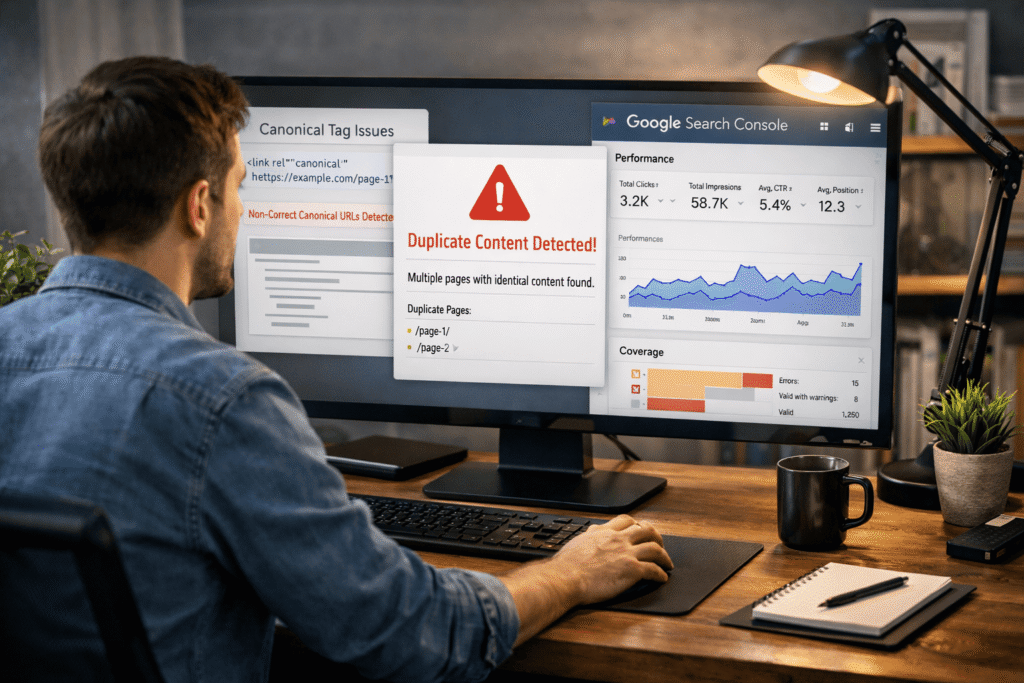
- Duplicate content warnings in Google Search Console
- Incorrect pages being indexed
- Ranking instability
Common Canonical URL Errors in WordPress
Incorrect Canonical Tag Implementation
The Issue
The canonical tag points to the wrong URL or a non-existent page.
Real-World Scenario
A blog post canonical points to the homepage instead of its own URL, causing search engines to ignore the actual content page.
Solution
- Inspect page source (
Ctrl + U) - Search for
rel="canonical" - Ensure it matches the exact page URL
Missing Canonical Tags
The Issue
No canonical tag is present, leaving search engines to decide which version is primary.
Solution
- Use SEO plugins like Yoast SEO or Rank Math
- Ensure canonical URLs are automatically generated
Multiple Canonical Tags
The Issue
More than one canonical tag appears due to plugin or theme conflicts.
Impact
Search engines may ignore canonical signals entirely.
Solution
- Disable duplicate SEO features across plugins
- Check theme settings for built-in canonical options
- Keep only one canonical source
HTTP vs HTTPS and www vs non-www Issues
The Issue
Different versions of your site exist:
Solution
- Set a preferred domain in WordPress settings
- Use 301 redirects to enforce one version
- Ensure canonical tags match the preferred version
Pagination and Archive Issues
The Issue
Category pages, tags, and paginated URLs may create duplicate variations.
Solution
- Use proper canonical tags for paginated content
- Configure SEO plugins to handle archives correctly
- Avoid indexing unnecessary archive pages
Practical Fix / Step-by-Step Guide
Step 1: Audit Your Website
Start with a structured audit using:
- Google Search Console
https://search.google.com/search-console
→ Check “Pages” → “Duplicate without user-selected canonical” - Google PageSpeed Insights
https://pagespeed.web.dev/
→ Helps identify general technical issues - GTmetrix
https://gtmetrix.com/
→ Analyze page structure and loading behavior
Also manually inspect page source to verify canonical tags.
Step 2: Install and Configure an SEO Plugin
Recommended tools:
- Yoast SEO
https://yoast.com/wordpress/plugins/seo/ - Rank Math SEO
https://rankmath.com/
Ensure:
- Canonical URLs are enabled by default
- Each page has a self-referencing canonical
- Only one SEO plugin is active (avoid conflicts)
Step 3: Set Canonical URL for Individual Pages / Posts
This is a critical step many developers miss.
Using Yoast SEO:
- Go to WordPress Dashboard → Pages or Posts
- Click Edit on the desired page
- Scroll down to the Yoast SEO panel
- Click on the “Advanced” tab
- Find the field: Canonical URL
- Enter your preferred URL, for example:
https://yourdomain.com/preferred-page/ - Update the page
Using Rank Math:
- Go to Pages or Posts → Edit Page
- Open the Rank Math SEO panel
- Navigate to the “Advanced” tab
- Locate the Canonical URL field
- Enter the correct canonical URL
- Click Update
When to Set Manual Canonical
Use manual canonical URLs when:
- You have duplicate or similar pages
- You want to point multiple pages to one primary page
- You are handling URL parameters or filtered pages
Avoid changing canonical URLs unnecessarily on standard pages.
Step 4: Fix URL Structure Consistency
- Force HTTPS using SSL
- Choose either www or non-www
- Apply 301 redirects via hosting or
.htaccess
Example (non-www to www redirect):
RewriteEngine On
RewriteCond %{HTTP_HOST} ^example.com [NC]
RewriteRule ^(.*)$ https://www.example.com/$1 [L,R=301]
Step 5: Resolve Duplicate Content Sources
Check and fix:
- URL parameters (
?utm=,?ref=) - Duplicate pages or drafts
- Category/tag archives
Use canonical or noindex where needed.
Step 6: Validate Fixes
- Use Google Search Console → URL Inspection Tool
- Confirm selected canonical vs Google-selected canonical
- Request indexing after fixes
Best Practices / Pro Tips
- Always use self-referencing canonical tags
- Avoid multiple SEO plugins
- Keep URL structure consistent
- Do not canonicalize unrelated pages
- Regularly monitor Google Search Console
- Combine canonical with proper redirects for best results
Conclusion
Canonical URL issues are one of the most overlooked yet impactful SEO problems in WordPress websites. They don’t break your site—but they silently affect indexing, rankings, and search visibility.
By understanding how canonical tags work and applying a structured, tool-driven approach, you can:
- Eliminate duplicate content issues
- Consolidate SEO authority
- Improve crawl efficiency
A properly configured canonical structure ensures that your website communicates clearly with search engines—resulting in better visibility and long-term SEO stability.
About the Author
Full Stack Developer & Digital Systems Engineer with 17+ years of experience building reliable, production-level web platforms.
Specializing in WordPress, APIs, backend systems, and performance optimization, I focus on creating scalable and stable digital solutions that perform in real-world environments.
With experience in digital systems and data-driven workflows, I bring a structured, problem-solving approach to complex technical challenges.
Portfolio: https://hadi-mirza.com
References & Further Reading
- Google Search Central – Canonical URLs
https://developers.google.com/search/docs/crawling-indexing/consolidate-duplicate-urls - Google Search Console
https://search.google.com/search-console - Yoast SEO Canonical Guide
https://yoast.com/rel-canonical/ - Rank Math Canonical Documentation
https://rankmath.com/kb/canonical-urls/ - GTmetrix Performance Testing
https://gtmetrix.com/ - WordPress SEO Best Practices
https://wordpress.org/support/article/search-engine-optimization/