Introduction
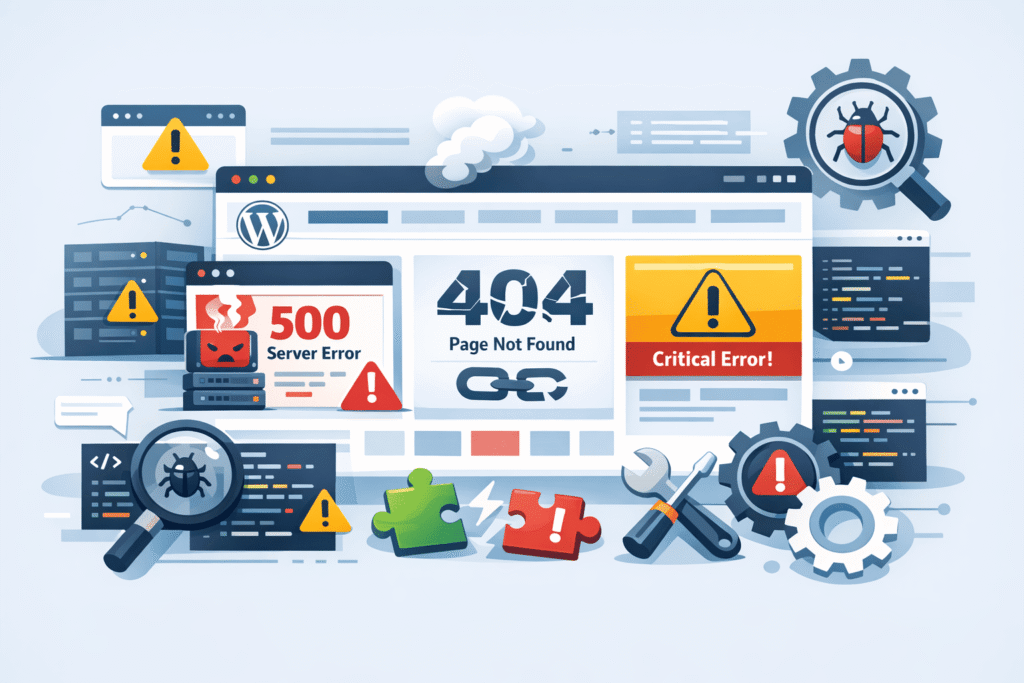
WordPress powers a significant portion of the web, but even well-built websites can face technical issues that disrupt performance, accessibility, and SEO.
In real client scenarios, most WordPress problems are not caused by complex system failures—they are usually the result of configuration errors, plugin conflicts, or server misconfigurations.
The challenge is not just fixing the issue, but identifying the root cause safely and systematically.
This guide covers the top 5 WordPress technical errors clients frequently face, along with practical fixes and professional troubleshooting steps you can apply without risking your website.
Key Context: Why These Errors Matter
Technical errors in WordPress can lead to:
- Website downtime
- Loss of traffic and SEO rankings
- Poor user experience
- Failed indexing in search engines
According to Google Search Console, crawl errors and server issues directly impact how search engines access and rank your website.
The key is not panic—but structured troubleshooting.
500 Internal Server Error
Explanation
The 500 Internal Server Error is one of the most common and frustrating WordPress issues. It does not specify the exact problem but indicates something has gone wrong on the server.
In client cases, this error is often triggered by:
- Corrupted
.htaccessfile - Plugin or theme conflicts
- PHP memory limits
- Server misconfiguration
Fix (Step-by-Step)
- Rename your
.htaccessfile to.htaccess_old - Refresh your website
- If the site loads, regenerate
.htaccess:Permalink Regeneration Trick- Go to WordPress Dashboard → Settings → Permalinks
- Click Save Changes (no edits needed)
- If not fixed, disable plugins via FTP or hosting panel
- Increase PHP memory limit if needed
White Screen of Death (WSOD)
Explanation
The White Screen of Death shows a blank page with no error message. This typically happens due to:
- PHP fatal errors
- Plugin or theme conflicts
- Memory exhaustion
In many client cases, a recently updated plugin caused the issue.
Fix (Step-by-Step)
- Enable debugging in
wp-config.php:define('WP_DEBUG', true); - Check error logs to identify the issue
- Disable all plugins and reactivate one by one
- Switch to a default theme (like Twenty Twenty-Four)
- Increase memory limit if required
.htaccess Errors
Explanation
The .htaccess file controls important server behavior such as URL rewriting and redirects.
Even a small syntax error in this file can break your entire website.
In client cases, errors often occur after:
- Manual edits
- Plugin modifications
- Migration issues
Fix (Step-by-Step)
Basic .htaccess Reset Method
- Backup existing
.htaccess - Delete or rename the file
- Go to WordPress Dashboard → Settings → Permalinks
- Click Save Changes to regenerate a clean file
This resolves most .htaccess-related issues safely.
Permalink 404 Issues
Explanation
Sometimes, individual pages or posts return 404 errors, even though they exist in the dashboard.
This usually happens due to:
- Broken rewrite rules
- Incorrect permalink settings
- Server configuration issues
Fix (Step-by-Step)
Permalink Regeneration Trick
- Go to Settings → Permalinks
- Select any structure and click Save Changes
- Switch back to your preferred structure and save again
If the issue persists:
- Check
.htaccessfile - Ensure mod_rewrite is enabled on server
- Clear cache and CDN
Plugin Conflicts
Explanation
Plugins extend WordPress functionality, but using multiple plugins without compatibility checks can cause conflicts.
In real client scenarios, conflicts often occur when:
- Two plugins perform similar functions (e.g., SEO plugins like Yoast SEO and Rank Math)
- Plugins are outdated
- Poorly coded plugins override core functionality
Fix (Step-by-Step)
- Disable all plugins
- Reactivate one by one
- Identify the conflicting plugin
- Replace or update the plugin
- Avoid using multiple plugins for the same purpose
Additional Troubleshooting Tips (Professional Approach)
Beyond the common fixes, here are practical techniques used in real projects:
- Always clear cache (browser, plugin, CDN like Cloudflare)
- Check server error logs for hidden issues
- Use staging environment before applying major changes
- Keep WordPress core, themes, and plugins updated
- Avoid direct file edits without backups
Conclusion
Most WordPress technical errors may appear critical, but they are usually caused by simple, fixable issues.
The difference between panic and resolution is structured troubleshooting.
From 500 errors and white screens to permalink issues and plugin conflicts, each problem has a logical root cause—and a safe method to fix it.
Understanding these patterns not only helps resolve issues faster but also prevents future problems.
For website owners and developers, mastering these basics is essential for maintaining a stable, high-performing WordPress site.
Reference and Further Reading
WordPress Debugging Guide
https://wordpress.org/documentation/article/debugging-in-wordpress/
WordPress .htaccess Guide
https://wordpress.org/documentation/article/htaccess/
Google Search Console Help
https://support.google.com/webmasters/
Yoast SEO Documentation
https://yoast.com/help/
Rank Math Documentation
https://rankmath.com/kb/
Cloudflare Cache Documentation
https://developers.cloudflare.com/cache/