Introduction
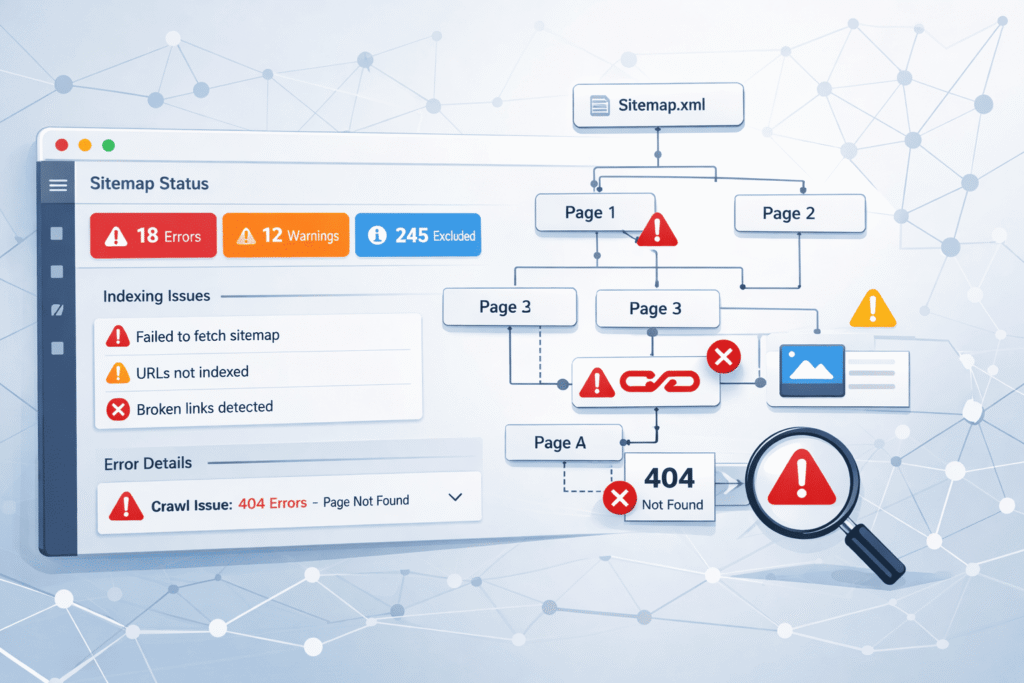
When website owners open Google Search Console and see errors like “Sitemap couldn’t be fetched” or “Invalid XML format”, it often creates confusion and concern.
This was exactly the situation a client recently faced. Their website traffic had dropped slightly, and upon checking Search Console, multiple sitemap errors were reported. The sitemap existed, but search engines were unable to properly read or process it.
The issue wasn’t uncommon—but it required a structured approach to diagnose and fix.
This guide walks through the real causes, step-by-step fixes, and best practices to ensure your sitemap works correctly and supports your SEO performance.
Key Problem: Why Sitemap Errors Matter
A sitemap helps search engines understand your website structure and discover pages efficiently.
When a sitemap has errors:
- Important pages may not get indexed
- Crawling becomes inefficient
- SEO performance can decline over time
According to Google Search Central, a properly structured sitemap improves crawl efficiency, especially for large or frequently updated websites.
Common Sitemap Errors and How to Fix Them
Invalid XML Formatting
One of the most common issues is broken XML formatting. Even a small error—such as extra whitespace or a missing tag—can make the sitemap unreadable.
In the client case, the sitemap contained hidden whitespace added by a theme file. This caused a parsing error in Search Console.
How to Fix
- Open your sitemap URL (e.g.,
/sitemap.xml) - Validate it using tools like W3C Markup Validation Service
- Check for:
- Extra spaces before
<?xml - Broken or unclosed tags
- Encoding issues
Plugin Conflicts
Many WordPress sites use SEO plugins to generate sitemaps. Problems occur when multiple plugins try to control the sitemap.
In this case, both Yoast SEO and Rank Math were active, generating conflicting sitemap structures.
How to Fix
- Use only one sitemap-generating plugin
- Disable sitemap functionality in other plugins
- Clear plugin caches after changes
Caching or CDN Issues
Caching layers or CDNs sometimes serve outdated or broken versions of your sitemap.
The client’s website used Cloudflare, and the cached sitemap was outdated, causing fetch errors.
How to Fix
- Clear your website cache
- Purge CDN cache from your dashboard
- Ensure sitemap URLs are not blocked or cached incorrectly
Incorrect Content-Type Headers
Search engines expect the sitemap to be served with the correct content type: application/xml.
If the server sends the wrong header (e.g., text/html), Search Console may reject it.
How to Fix
- Check headers using browser dev tools or online header checkers
- Ensure your server configuration returns:
Content-Type: application/xmlBroken or Invalid URLs Inside Sitemap
Sometimes the sitemap itself is valid, but it contains URLs that return errors such as 404 or 500.
In the client case, several outdated URLs were still included in the sitemap.
How to Fix
- Remove broken or redirected URLs
- Ensure all listed URLs return status 200
- Regenerate sitemap after cleanup
Step-by-Step Resolution
Here’s the structured process used to fix the issue:
- Validated sitemap using XML validator
- Identified whitespace issue in theme file
- Disabled duplicate sitemap plugin
- Cleared cache and CDN (Cloudflare)
- Fixed broken URLs in sitemap
- Resubmitted sitemap in Google Search Console
Within a few days, the sitemap errors disappeared, and indexing returned to normal.
Best Practices to Prevent Sitemap Errors
To avoid similar issues in the future:
- Use a single reliable SEO plugin
- Regularly monitor Search Console for errors
- Keep your sitemap clean and updated
- Avoid manual edits unless necessary
- Test sitemap after major updates or migrations
A well-maintained sitemap ensures better indexing and improved search visibility.
Conclusion
Sitemap errors in Google Search Console may seem technical, but they are usually caused by common and fixable issues.
In most cases, the problem is not the absence of a sitemap—but how it is generated, served, or cached.
With a structured troubleshooting approach, these errors can be resolved quickly and safely.
If your website is experiencing similar issues, addressing them early can prevent long-term SEO impact and ensure your content is properly indexed.
Reference and Further Reading
Google Search Central – Sitemaps Guide
https://developers.google.com/search/docs/crawling-indexing/sitemaps/overview
Google Search Console Help – Sitemap Errors
https://support.google.com/webmasters/answer/7451001
WordPress Sitemap Documentation
https://wordpress.org/documentation/article/sitemaps/
Yoast SEO Sitemap Guide
https://yoast.com/help/xml-sitemaps-in-the-wordpress-seo-plugin/
Rank Math Sitemap Guide
https://rankmath.com/kb/sitemap-settings/
Cloudflare Cache Documentation
https://developers.cloudflare.com/cache/
W3C XML Validation Tool
https://validator.w3.org/